
Build Q&A System with Langchain, Qdrant, and OpenAI
OpenAI cookbook building a Langchain question-answering system on a local Qdrant instance with custom prompts.
Why it matters
Implement an end-to-end question answering system. This asset leverages OpenAI for embeddings, Qdrant for knowledge base storage, and Langchain to orchestrate the process, enabling efficient retrieval and summarization of answers from a given context.
Outcomes
What it gets done
Calculate document embeddings using OpenAI API.
Store embeddings in a local Qdrant instance.
Retrieve relevant context from Qdrant based on user queries.
Generate answers using an LLM based on retrieved context.
Install
Add it to your toolbox
Run in your project directory:
curl -fsSL https://spark.entire.vc/get/oai-qawithlangchainqdrantandopenai | bash Steps
Steps in the chain
Overview
Question Answering with Langchain, Qdrant and OpenAI
OpenAI cookbook building a Langchain question-answering pipeline on top of a local Qdrant instance as the knowledge base, covering embedding, indexing, nearest-neighbor retrieval, and customizing the default stuff-chain answer prompt. Use when you want a working Langchain QA pipeline over a local Qdrant knowledge base, after Qdrant itself is already running.
What it does
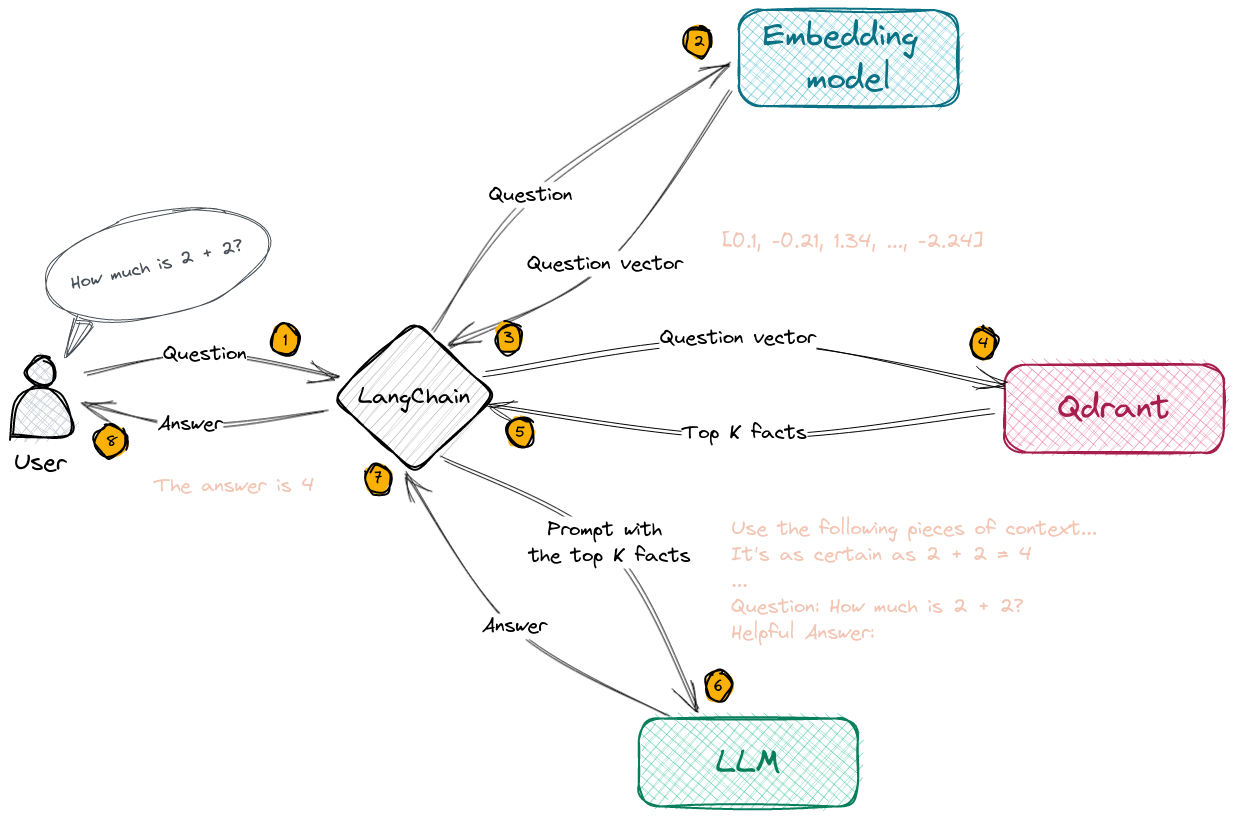
This OpenAI cookbook notebook builds a question-answering system using Langchain, a local Qdrant instance as the knowledge base, and OpenAI embeddings - building on the companion Getting Started with Qdrant and OpenAI notebook. It covers an end-to-end process: calculating embeddings with the OpenAI API, storing them in Qdrant to build a knowledge base, converting a raw text query into an embedding, running nearest-neighbor search in Qdrant to retrieve relevant context, and asking an LLM to answer the question using that context - with each step reduced to a corresponding Langchain method call. Setup requires a Qdrant server instance (run locally via Docker using the attached docker-compose.yaml, verifiable with a simple curl command), the qdrant-client library, Langchain, and an OpenAI API key set as the OPENAI_API_KEY environment variable, alongside the openai, langchain, and qdrant-client Python packages. The notebook loads a dataset of natural questions and answers, uses Langchain's built-in Qdrant integration to automatically index the set of answers, and defines a full QA chain in which a question is vectorized by the OpenAI model, the resulting vector retrieves the most similar stored answers from Qdrant, and those answers are incorporated into the prompt sent to the OpenAI LLM - with the communication flow between question, Qdrant, and the LLM illustrated in an accompanying diagram. It also covers customizing the stuff chain type's default prompt (which instructs the model to say it doesn't know rather than fabricate an answer, using {context} and {question} placeholders that must be preserved), including an example custom prompt that asks the model to give a single-sentence answer if it knows one, or suggest a random song title otherwise.
When to use - and when NOT to
Use this notebook when you want a working Langchain-based QA pipeline over a local Qdrant knowledge base without hand-writing the embedding, storage, and retrieval glue code, or when you want to see how to customize the answer-generation prompt beyond Langchain's default stuff chain template. It is not the right starting point if Qdrant isn't set up yet - the companion Getting Started notebook covers that first - and it does not cover Langchain chain types other than stuff.
Inputs and outputs
Input is a natural-language question plus a pre-indexed set of answer documents in Qdrant. Output is an LLM-generated answer grounded in the most similar retrieved context, using either Langchain's default stuff-chain prompt or a custom prompt template that preserves the {context} and {question} placeholders.
Integrations
Built on Langchain (its native Qdrant integration and stuff chain type), a local Qdrant instance run via Docker/docker-compose.yaml, the qdrant-client Python library, and the OpenAI API for embeddings and chat completion.
Use the following pieces of context to answer the question at the end. If you don't know the answer, just say that you don't know, don't try to make up an answer.
{context}
Question: {question}
Helpful Answer:
Who it's for
Developers building a Langchain-based question-answering system on top of a local Qdrant instance who want the standard retrieval-plus-generation pattern working quickly, with the option to customize the answer prompt's behavior.
Source README
Question Answering with Langchain, Qdrant and OpenAI
This notebook presents how to implement a Question Answering system with Langchain, Qdrant as a knowledge based and OpenAI embeddings. If you are not familiar with Qdrant, it's better to check out the Getting_started_with_Qdrant_and_OpenAI.ipynb notebook.
This notebook presents an end-to-end process of:
- Calculating the embeddings with OpenAI API.
- Storing the embeddings in a local instance of Qdrant to build a knowledge base.
- Converting raw text query to an embedding with OpenAI API.
- Using Qdrant to perform the nearest neighbour search in the created collection to find some context.
- Asking LLM to find the answer in a given context.
All the steps will be simplified to calling some corresponding Langchain methods.
Prerequisites
For the purposes of this exercise we need to prepare a couple of things:
- Qdrant server instance. In our case a local Docker container.
- The qdrant-client library to interact with the vector database.
- Langchain as a framework.
- An OpenAI API key.
Start Qdrant server
We're going to use a local Qdrant instance running in a Docker container. The easiest way to launch it is to use the attached [docker-compose.yaml] file and run the following command:
We might validate if the server was launched successfully by running a simple curl command:
Install requirements
This notebook obviously requires the openai, langchain and qdrant-client packages.
Prepare your OpenAI API key
The OpenAI API key is used for vectorization of the documents and queries.
If you don't have an OpenAI API key, you can get one from https://beta.openai.com/account/api-keys.
Once you get your key, please add it to your environment variables as OPENAI_API_KEY by running following command:
Load data
In this section we are going to load the data containing some natural questions and answers to them. All the data will be used to create a Langchain application with Qdrant being the knowledge base.
Chain definition
Langchain is already integrated with Qdrant and performs all the indexing for given list of documents. In our case we are going to store the set of answers we have.
At this stage all the possible answers are already stored in Qdrant, so we can define the whole QA chain.
Search data
Once the data is put into Qdrant we can start asking some questions. A question will be automatically vectorized by OpenAI model, and the created vector will be used to find some possibly matching answers in Qdrant. Once retrieved, the most similar answers will be incorporated into the prompt sent to OpenAI Large Language Model. The communication between all the services is shown on a graph:
Custom prompt templates
The stuff chain type in Langchain uses a specific prompt with question and context documents incorporated. This is what the default prompt looks like:
Use the following pieces of context to answer the question at the end. If you don't know the answer, just say that you don't know, don't try to make up an answer.
{context}
Question: {question}
Helpful Answer:
We can, however, provide our prompt template and change the behaviour of the OpenAI LLM, while still using the stuff chain type. It is important to keep {context} and {question} as placeholders.
Experimenting with custom prompts
We can try using a different prompt template, so the model:
- Responds with a single-sentence answer if it knows it.
- Suggests a random song title if it doesn't know the answer to our question.
FAQ
Common questions
Discussion
Questions & comments · 0
Sign In Sign in to leave a comment.