
Build and Refine Codebases with AI
A cookbook guide to building a GPT-5.1 coding agent with the Agents SDK that scaffolds, edits, and iterates on a codebase.
Why it matters
Develop a sophisticated coding agent capable of scaffolding new applications from prompts, iterating on code through user feedback, and leveraging external documentation for informed development.
Outcomes
What it gets done
Scaffold new projects using web-sourced context and shell commands.
Iterate on existing codebases with in-place edits via the apply_patch tool.
Integrate with external documentation sources for up-to-date context.
Execute shell commands for tasks like scaffolding and dependency management.
Install
Add it to your toolbox
Run in your project directory:
curl -fsSL https://spark.entire.vc/get/oai-buildacodingagentwithgpt-51 | bash Steps
Steps in the chain
Overview
Building a Coding Agent with GPT-5.1 and the OpenAI Agents SDK
This guide builds a GPT-5.1 coding agent with the OpenAI Agents SDK that scaffolds a new app using shell and web_search tools, then iterates on it via apply_patch and up-to-date docs from the Context7 MCP server. Use it when building an agent that must actively work on a codebase - running commands and applying edits - rather than just generating code snippets, always inside a sandboxed execution environment.
What it does
This guide builds a coding agent, using GPT-5.1 and the OpenAI Agents SDK, that can scaffold a brand-new app from a prompt and refine it through user feedback. The agent is equipped with four tools: apply_patch to edit files, shell to run shell commands, web_search to pull fresh information from the web, and the Context7 MCP to access up-to-date documentation. The guide first builds the agent around shell and web_search to generate a new project with web-sourced context, then adds apply_patch so the agent can iterate on the codebase, and connects it to the Context7 MCP server so it can write code informed by current docs.
When to use - and when NOT to
Use this as a blueprint when you want an agent that actively works with a codebase - running commands, applying edits, pulling in fresh context - rather than just generating standalone code snippets. Shell command execution is inherently risky: the guide's own example runs commands locally inside an isolated workspace directory for simplicity, but explicitly warns that in production you should always execute shell commands in a sandboxed environment, and similarly run apply_patch edits in a sandboxed project workspace such as ephemeral containers.
Inputs and outputs
With the Agents SDK, defining an agent means providing instructions and a list of tools; this guide uses the gpt-5.1 model for its coding ability. The shell tool works by having the model propose commands, while a ShellExecutor class - built on asyncio.create_subprocess_shell, with commands running under cwd=workspace_dir so they only touch that folder - actually executes them and returns a ShellResult; the Agents SDK automates most of this handshake, leaving only the executor and environment for you to implement. The guide's worked example has the agent scaffold a NextJS dashboard using the shadcn library, checked by running:
cd coding-agent-workspace/<name_of_the_project>
npm run dev
If the agent hits a MaxTurnsExceeded error or a dependency error, the guide's advice is simply to re-run the agent loop, with a note that production systems would implement an outer loop or user-input handling for this. Once an initial project exists, the agent is updated with apply_patch and the Context7 MCP connection so it can edit the project in place and pull current OpenAI Responses API documentation while doing so, specifically told not to edit files via shell commands to avoid diff context mismatches.
Integrations
Built on the OpenAI Agents SDK and the Responses API's code-editing and command-execution tools, with the Context7 MCP server providing up-to-date documentation access during iteration.
Who it's for
Developers building agents meant to work end-to-end on real codebases - scaffolding new apps, iterating via patches, and staying current with external docs - rather than one-shot code generation, including teams looking to extend this pattern into IDEs, code sandboxes, or real-time collaboration with developers.
Source README
Building a Coding Agent with GPT-5.1 and the OpenAI Agents SDK
GPT-5.1 is exceptionally strong at coding, and with the new code-editing and command-execution tools available in the Responses API, it’s now easier than ever to build coding agents that can work across full codebases and iterate quickly.
In this guide, we’ll use the Agents SDK to build a coding agent that can scaffold a brand-new app from a prompt and refine it through user feedback. Our agent will be equipped with the following tools:
- apply_patch - to edit files
- shell - to run shell commands
- web_search - to pull fresh information from the web
- Context7 MCP - to access up-to-date documentation
We’ll begin by focusing on the shell and web_search tools to generate a new project with web-sourced context. Then we’ll add apply_patch so the agent can iterate on the codebase, and we’ll connect it to the Context7 MCP server so it can write code informed by the most recent docs.
Set up the agent
With the Agents SDK, defining an agent is as simple as providing instructions and a list of tools. In this example, we want to use the newest gpt-5.1 model for its state-of-the-art coding abilities.
We’ll start by enabling web_search, which gives the agent the ability to look up up-to-date information online, and shell, which lets the agent propose shell commands for tasks like scaffolding, installing dependencies, and running build steps.
The shell tool works by letting the model propose commands it believes should be executed. Your environment is responsible for actually running those commands and returning the output.
The Agents SDK automates most of this command-execution handshake for you-you only need to implement the shell executor, the environment in which those commands will run.
Define a working environment and shell executor
For simplicity, we'll run shell commands locally and isolate them in a dedicated workspace directory. This ensures the agent only interacts with files inside that folder.
Note: In production, always execute shell commands in a sandboxed environment. Arbitrary command execution is inherently risky and must be tightly controlled.
We’ll now define a small ShellExecutor class that:
- Receives a
ShellCommandRequestfrom the agent - Optionally asks for approval before running commands
- Runs them using
asyncio.create_subprocess_shell - Returns a
ShellResultwith the outputs
All commands will run with cwd=workspace_dir, so they only affect files in that subfolder.
Define the agent
Start a new project
Let’s send a prompt to our coding agent and then inspect the files it created in the workspace_dir.
In this example, we'll create a NextJS dashboard using the shadcn library.
Note: sometimes you might run into an MaxTurnsExceeded error, or the project might have a dependency error. Simply run the agent loop again. In a production environment, you would implement an external loop or user input handling to iterate if the project creation fails.
Once the agent is done creating the initial project (you should see a "=== Run complete ===" log followed by the final answer), you can check the output with the following commands:
cd coding-agent-workspace/<name_of_the_project>
npm run dev
You should see something like this: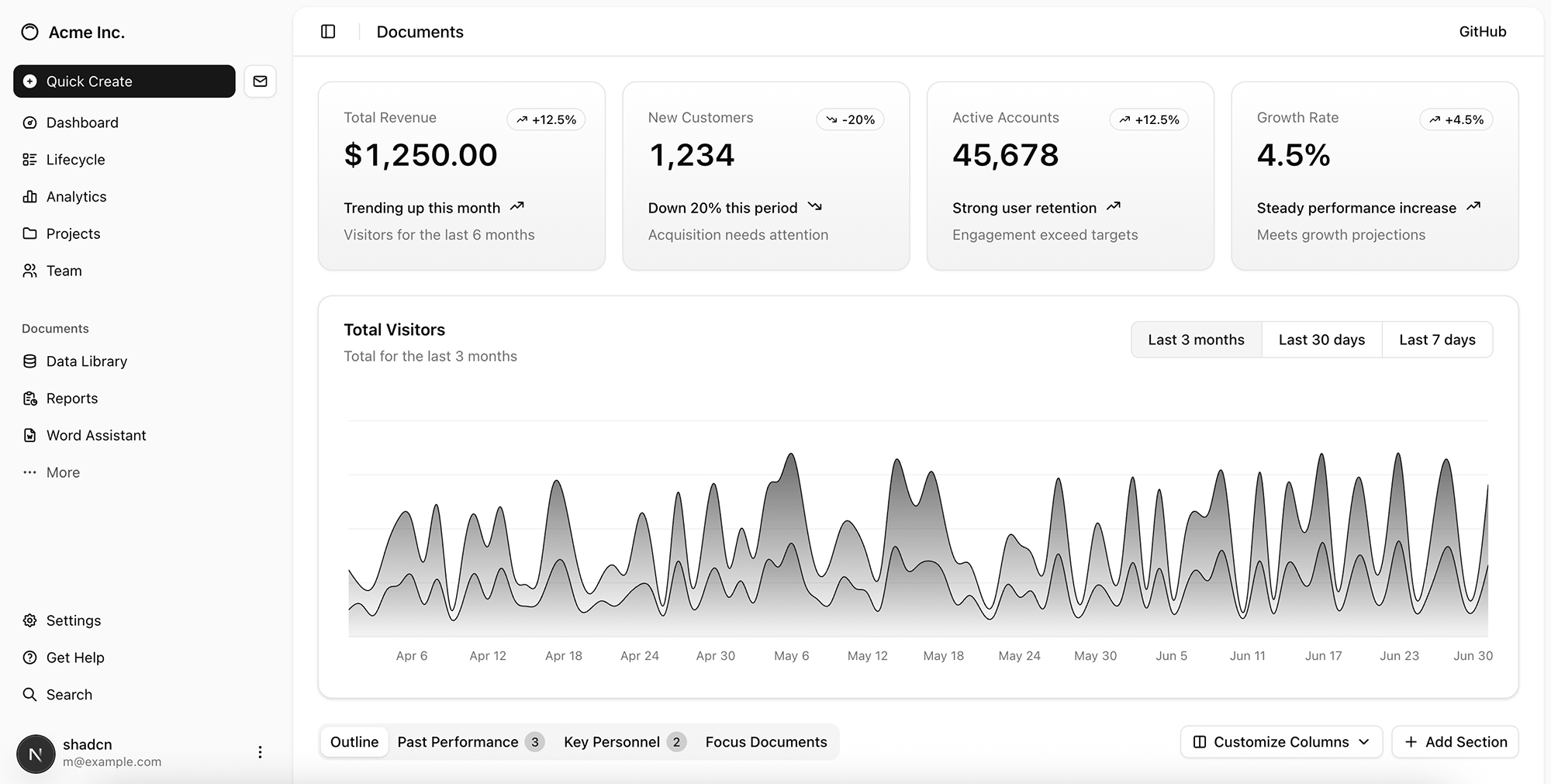
Iterate on the project
Now that we have an initial version of the app, we can start iterating using the apply_patch tool. We also want to include calls to the OpenAI Responses API, and for that, the model should have access to the most up-to-date documentation. To make this possible, we’ll connect the agent to the Context7 MCP server, which provides up-to-date docs.
Set up the apply_patch tool for in-place edits
Note: in production you’ll typically want to run these edits in a sandboxed project workspace (e.g. ephemeral containers), and work with IDEs.
Connect to the the Context7 MCP server
Update the agent
Let's create a new agent that also uses these two additional tools, and update the instructions accordingly.
To avoid a context mismatch when applying the diffs, for this agent we'll specify not to edit files via a command.
Run the agent to edit the project
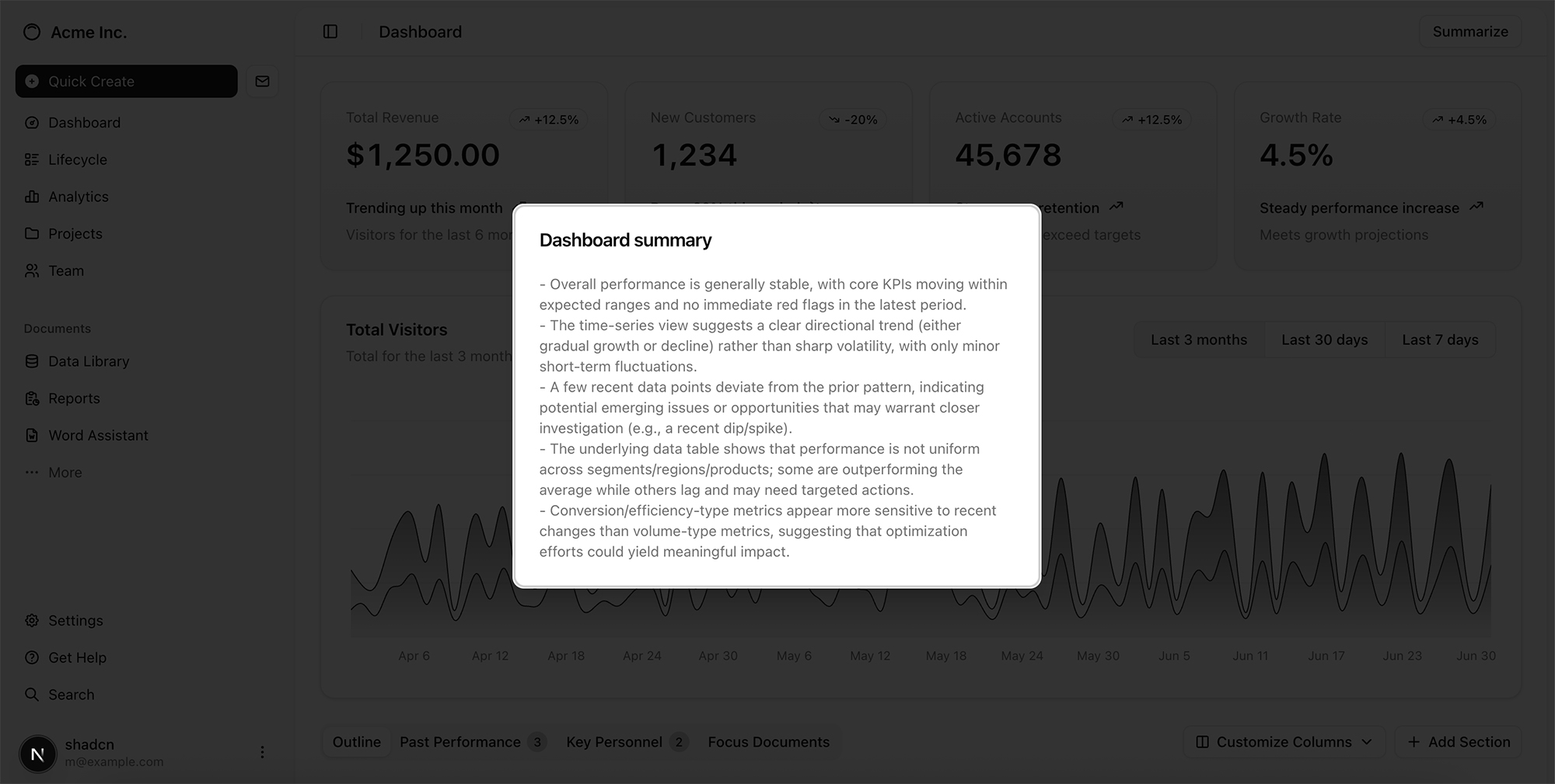
Once the agent is done updating the project (you should see a "=== Run complete ===" log followed by the final answer), you will see the updated UI, with the OpenAI Responses API call to summarize what's on the dashboard.
Note: If this step fails, you can re-run the agent loop. In a production environment, you would implement an outer loop that handles errors or wait for user input and iterate.
Wrapping up
In this cookbook guide, we built a coding agent that can scaffold a project, refine it through patches, execute commands, and stay up to date with external documentation. By combining GPT 5.1 with the Agents SDK and tools like shell, apply_patch, web_search, and the Context7 MCP, you can create agents that don’t just generate code-they actively work with codebases: running commands, applying edits, pulling in fresh context, and evolving a project end-to-end.
This workflow is a powerful blueprint for building agents that feel less like tools and more like collaborators. You can extend this pattern to integrate agents into IDEs or code sandboxes, generate new apps from scratch, work across large codebases, or even collaborate with developers in real time.
FAQ
Common questions
Discussion
Questions & comments · 0
Sign In Sign in to leave a comment.