
Search multiple engines and extract web content as Markdown
mcp-searxng is an SSE-based MCP server that lets AI agents search the web via a self-hosted SearXNG meta-search engine.
1.0.0Add to Favorites
Why it matters
Enable AI agents to search across multiple search engines simultaneously through SearXNG's meta-search capabilities and extract webpage content into clean Markdown format for analysis and processing.
Outcomes
What it gets done
Query multiple search engines (Google, DuckDuckGo, Brave, Ecosia) through a single SearXNG interface
Retrieve and parse search results from the meta-search engine
Extract full webpage content from URLs and convert to Markdown format
Maintain privacy and security control with self-hosted search infrastructure
Source
Get it from source
Spark does not host a copy of it.
Open sourceReports
Agent outcome reports
No reports yet
Overview
mcp-searxng is an SSE-based MCP server bridging an AI agent to a self-hosted SearXNG meta-search engine, with web_search for aggregated multi-engine search and web_url_read to convert a page to Markdown. Use it when an AI agent needs web search aggregated across multiple engines with self-hosted control, rather than relying on a single provider's API.
What it does
mcp-searxng is an SSE-based MCP server that lets an AI agent search the web through a self-hosted SearXNG meta-search engine and read web pages as Markdown. It exposes two tools: web_search, which takes a query and returns results aggregated by SearXNG from multiple underlying search engines (Google, DuckDuckGo, Brave, and others depending on SearXNG's configuration); and web_url_read, which fetches a given URL and converts the page to Markdown-formatted text using Microsoft's markdownify.
When to use - and when NOT to
Use it when an AI agent needs to search the open web and pull readable content from a resulting page, with the search itself running through SearXNG rather than any single search provider's own API - useful where combining multiple engines' coverage beats any one engine's individual weaknesses, such as poor Chinese-language support or thin crawl coverage outside Google. It requires a running SearXNG instance, self-hosted or from a community-run public instance; it is not itself a search index, only an MCP bridge to one.
Capabilities
Being SSE-based rather than stdio-based means the MCP server can run as a decoupled remote process that an AI Agent client connects to, uses, and disconnects from at will, rather than being spawned as a local subprocess - a better fit for cloud-native deployments than the stdio model where the client owns the server's lifecycle. The server's host, port, and target SearXNG URL are all configurable via command-line arguments: --host, default 0.0.0.0; --port, default 5488; --searxng_url, default http://localhost:8888.
How to install
The fastest path runs both SearXNG and mcp-searxng together via the repo's root-level Docker Compose file:
$ docker compose build
$ docker compose up -d
This starts SearXNG on port 8888 and mcp-searxng on port 5488. Alternatively, run SearXNG separately, a pre-configured setup lives in searxng-docker/, then start the MCP server with uv run server.py --searxng_url="http://localhost:8888", or build and run it as its own Docker image, pointing SEARXNG_URL at the SearXNG host's real IP rather than localhost when containerized. Add it to an MCP client with:
{
  "mcpServers": {
    "searxng": {
      "url": "http://localhost:5488/sse"
    }
  }
}
Who it's for
Developers and businesses who want an AI agent to search the web while keeping control over which search engines are aggregated and where the search infrastructure runs, rather than depending on a single third-party search API. Verifying a fresh setup is done through the MCP Inspector: connect over SSE to the server's /sse endpoint, list its tools, and run web_search or web_url_read directly to confirm both are working before wiring the server into a real agent.
Source README

mcp-searxng


An example of an MCP Server for use by an AI Agent, designed to allow the AI Agent to search for new external information through SearXNG's open-source meta-search engine.
Currently, many search engines other than Google have emerged in the market, attempting to capture market share in areas where Google falls short. For instance, DuckDuckGo emphasizes not tracking users, Ecosia plants trees with every search, and Brave Search aims to harness collective efforts to build a free search engine.
However, the results returned by these engines are often unsatisfactory. Firstly, they don’t crawl as many web pages as Google does; secondly, their support for Chinese is poor. Although they can access some interesting pages that Google doesn’t display, search engines other than Google are still quite difficult to use.
So why not combine the results from multiple search engines!? That’s exactly what a meta-search engine does. SearXNG, an open-source meta-search engine software, can be self-hosted or used via sites provided by enthusiastic community members. For businesses, SearXNG offers a way to maintain privacy and security control while enabling AI Agents to effectively search for the external data they need.
References:
- SearXNG Official Website
- Self-Hosting an Open-Source SearXNG Meta-Search Engine to Search Google, DuckDuckGo, and More at Once
Purpose
This MCP server demonstrates an SSE-based MCP server (integrated with SearXNG and Microsoft's markdownify to extract web pages into Markdown-formatted text) and its operational mode using the MCP Inspector (MCP client).
Runtime Environment
This project uses uv to manage dependencies and the Python runtime environment. If uv is not yet installed, you can follow the installation instructions on the official website.
The following commands are executed in an Ubuntu 24.04 environment. For operations on other operating systems, please adjust accordingly:
$ curl -LsSf https://astral.sh/uv/install.sh | sh
Download source code:
$ git clone https://github.com/erhwenkuo/mcp-searxng.git

$ cd mcp-searxng

$ uv sync
Running the Service
Running Both Services with Docker Compose
For a simplified setup, you can use the root-level docker-compose.yaml file to run both the SearXNG service and the MCP-SEARXNG service together. This approach automatically handles the network configuration between the two services. This is the fastest way to set up mcp-searxng.
First, ensure you are in the project root directory:
$ cd /path/to/mcp-searxng
Then, build and start both services with Docker Compose:
$ docker compose build
$ docker compose up -d
Check the status of running containers:
$ docker compose ps

NAME          IMAGE                              COMMAND                  SERVICE   CREATED              STATUS          PORTS
mcp-searxng   mcp-searxng-mcp                    "uv run server.py"       mcp       About a minute ago   Up 50 seconds   0.0.0.0:5488->5488/tcp, [::]:5488->5488/tcp
searxng       docker.io/searxng/searxng:latest   "/usr/local/searxng/…"   searxng   About an hour ago    Up 11 minutes   0.0.0.0:8888->8080/tcp, [::]:8888->8080/tcp
Both services are now running:
- SearXNG: Accessible at
http://localhost:8888 - MCP-SEARXNG: Accessible at
http://localhost:5488
To stop the services:
$ docker compose down
Running the SearXNG Service
First, install Docker on the machine where it will run and perform the related configurations. For detailed information, please refer to: Install Docker Engine on Ubuntu
In the project directory, there is a pre-configured simple SearXNG setup to facilitate testing.
mcp-searxng/searxng-docker/
├── docker-compose.yaml
└── searxng
    ├── settings.yml
    └── uwsgi.ini
Switch to the searxng-docker directory and use Docker Compose to start a SearXNG service:
$ cd searxng-docker
$ docker compose up -d
$ docker compose ps

NAME      IMAGE                              COMMAND                  SERVICE   CREATED          STATUS                    PORTS
searxng   docker.io/searxng/searxng:latest   "/sbin/tini -- /usr/…"   searxng   29 minutes ago   Up 29 minutes (healthy)   0.0.0.0:8888->8080
The test SearXNG service is mapped to the local machine's port: 8888.
Starting the MCP-SEARXNG Service
Method 1. Using uv to start:
Enter the following command to start:
$ uv run server.py --searxng_url="http://localhost:8888"

INFO:     Started server process [219904]
INFO:     Waiting for application startup.
INFO:     Application startup complete.
INFO:     Uvicorn running on http://0.0.0.0:5488 (Press CTRL+C to quit)
Using Docker to Start
First, build the Docker image:
$ docker build -t mcp-searxng .
Start mcp-searxng. Since the mcp-searxng service is being started using Docker, you cannot use localhost to point to the SearXNG service address when configuring the connection to SearXNG. It is recommended to directly query the local machine's IP address and then use the SEARXNG_URL environment variable for configuration.
The startup parameters below assume the local machine's IP is 192.168.54.88:
$ docker run -d -e SEARXNG_URL="http://192.168.54.88:8888" -p 5488:5488 mcp-searxng
Verifying the Results
First, install Node.js:
# Download and install nvm:
curl -o- https://raw.githubusercontent.com/nvm-sh/nvm/v0.40.2/install.sh | bash

# In lieu of restarting the shell
\. "$HOME/.nvm/nvm.sh"

# Download and install Node.js:
nvm install 22

# Verify the Node.js version:
node -v # Should print "v22.14.0".
nvm current # Should print "v22.14.0".

# Verify npm version:
npm -v # Should print "10.9.2".
Next, start the MCP Inspector:
$ npx @modelcontextprotocol/inspector

Starting MCP inspector...
Proxy server listening on port 3000

🔍 MCP Inspector is up and running at http://localhost:5173 🚀
Open http://localhost:5173 in your browser and perform the following actions:
- Select
SSEin the Transport Type dropdown. - Enter the MCP server's address and port in the URL field:
http://localhost:5488/sse. - Click
Connect. If the status shows "Connected," it means you have successfully connected to the MCP server. - Click the "Tools" tab at the top.
- Click the "List Tools" button, and you should see two tools:
web_searchweb_url_read
- Click
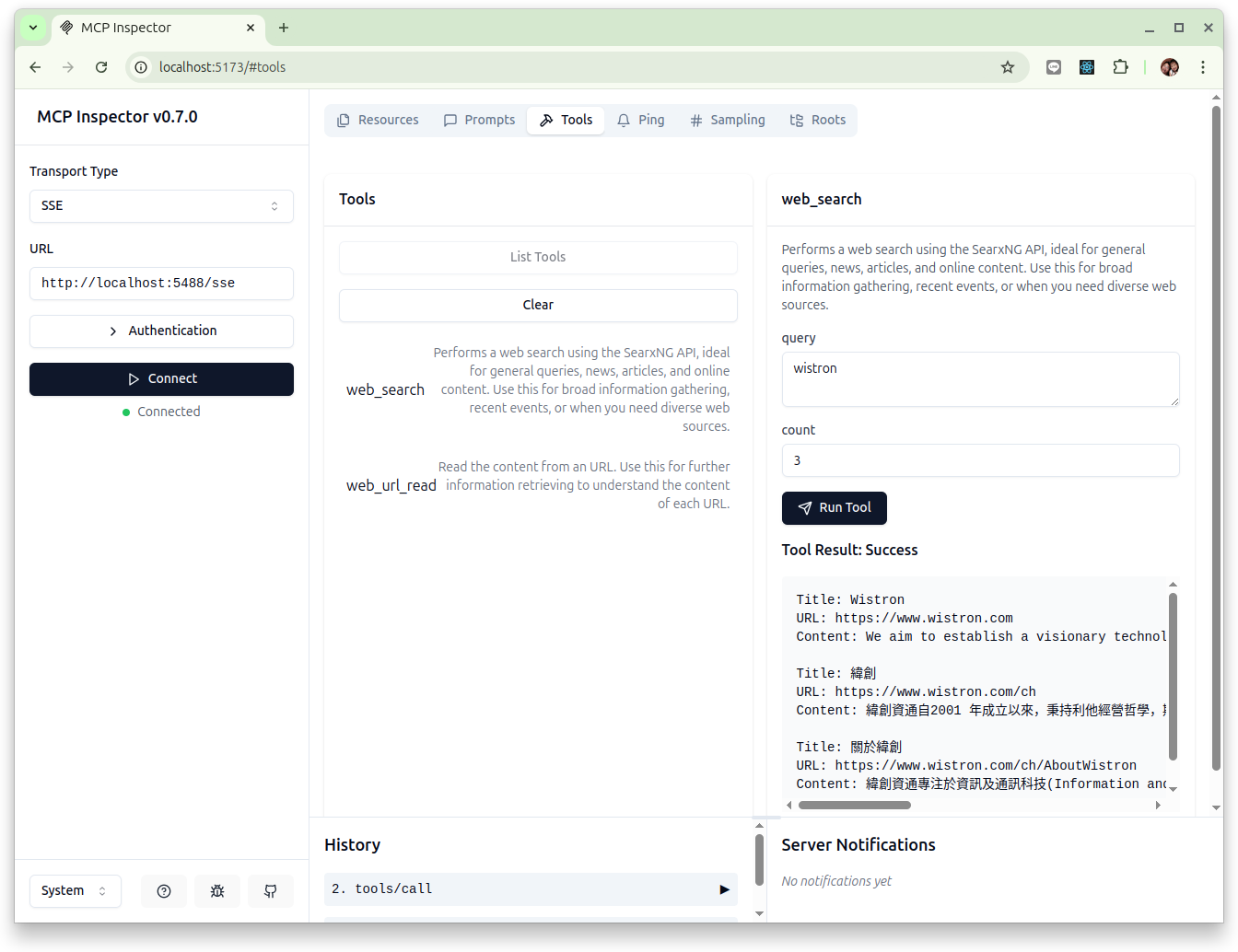
web_search. On the right, you’ll see the tool’s description and parameters. Enter the keyword you want to search for in thequeryinput field, then click the "Run Tool" button.
The effect is shown in the image below:
Test web_url_read:
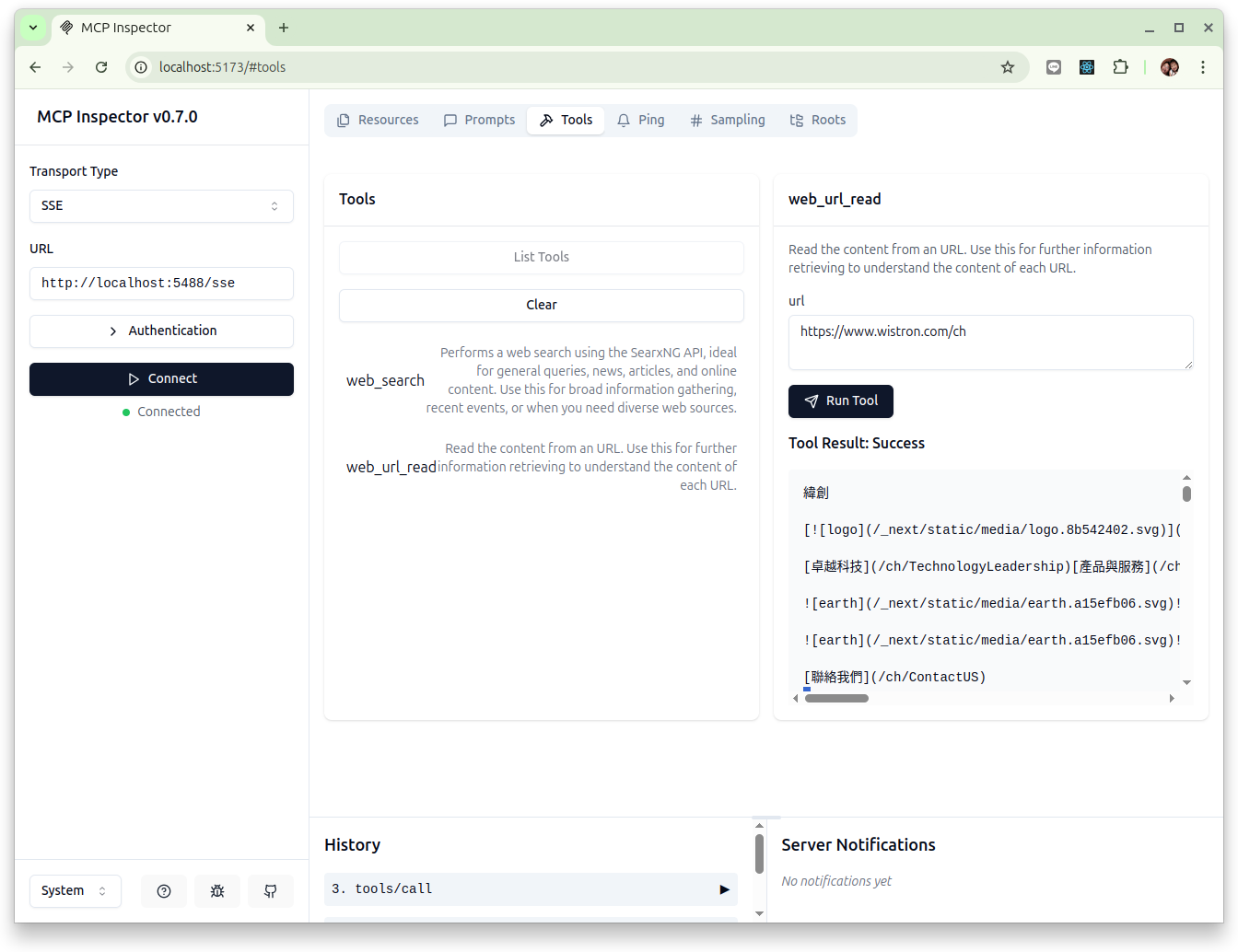
- Click
web_url_read. On the right, you’ll see the tool’s description and parameters. Enter the URL of the webpage you want to retrieve in theurlinput field, then click the "Run Tool" button.
Why Use SSE
This means the MCP server can be a process running remotely, and the AI Agent (client) can connect, use, and disconnect from it anytime, anywhere. In other words, an SSE-based server and client can be decoupled processes (potentially even on decoupled nodes).
Compared to the STDIO-based model, where the client spawns the server as a subprocess, this is different and more suitable for "cloud-native" use cases.
MCP Server
server.py is an SSE-based MCP server. By default, the server runs on 0.0.0.0:5488, but it can be configured using command-line arguments, for example:
uv run server.py --host <your host> --port <your port>
Startup Parameters:
| Parameter | Required | Default | Type | Description |
|---|---|---|---|---|
--host |
No | 0.0.0.0 |
str | Host to bind to |
--port |
No | 5488 |
int | Port to listen on |
--searxng_url |
No | http://localhost:8888 |
str | SearXNG URL to connect to |
To add it to any MCP configuration file, use the following:
{
  "mcpServers": {
    "searxng": {
      "url": "http://localhost:5488/sse"
    }
  }
}
Replace localhost:5488 to whatever containing your mcp-searxng instance.
FAQ
Common questions
Discussion
Questions & comments · 0
Sign In Sign in to leave a comment.