
Interact with MCP servers across multiple LLMs
Cross-platform Electron desktop chat app that connects to MCP servers and any OpenAI-SDK-compatible LLM, for quickly testing MCP setups.
Why it matters
Enable seamless communication with Model Context Protocol (MCP) servers through a unified desktop interface that works across different large language models, allowing users to switch between LLMs dynamically while maintaining consistent server connections.
Outcomes
What it gets done
Connect to MCP servers from a cross-platform desktop application
Switch between different LLM providers dynamically during conversations
Manage multiple MCP server connections simultaneously
Execute MCP server tools and functions through a graphical interface
Install
Add it to your toolbox
Run in your project directory:
curl -fsSL https://spark.entire.vc/get/mcp-chatmcp | bash Overview
ChatMCP
A cross-platform Electron desktop app implementing an MCP client with a minimalistic codebase, meant to demonstrate core MCP principles and let developers quickly test multiple MCP servers against any OpenAI-SDK-compatible LLM. Use it to learn MCP's core mechanics or quickly test multiple MCP servers against different LLM backends in a lightweight desktop chat app. The project's active development has moved to a successor, TUUI, for production-oriented use.
What it does
ChatMCP, the MCP Chat Desktop App, is a cross-platform Electron desktop application that implements an MCP client, letting a developer connect to and test MCP servers against any LLM the OpenAI SDK supports. The project deliberately keeps a minimalistic, clean codebase so the core mechanics of MCP, configuring servers, visualizing tool calls, seeing prompts in action, are easy to follow, rather than optimizing for feature completeness. It began as a modified version of Chat-UI adopted for educational MCP demonstration purposes.
When to use - and when NOT to
Use it to quickly spin up a chat interface against multiple MCP servers and LLM backends without building a client from scratch, or to study a straightforward reference implementation of MCP client mechanics. It is not the actively developed, production-oriented option from the same author: following community feedback for a more modular architecture without third-party CDN dependencies, development moved to a successor project, TUUI (Tool Unitary User Interface), which is where new feature work and AI-assisted development now happen. ChatMCP itself is described as largely feature-complete for its original minimalist, educational purpose rather than under active feature expansion.
Inputs and outputs
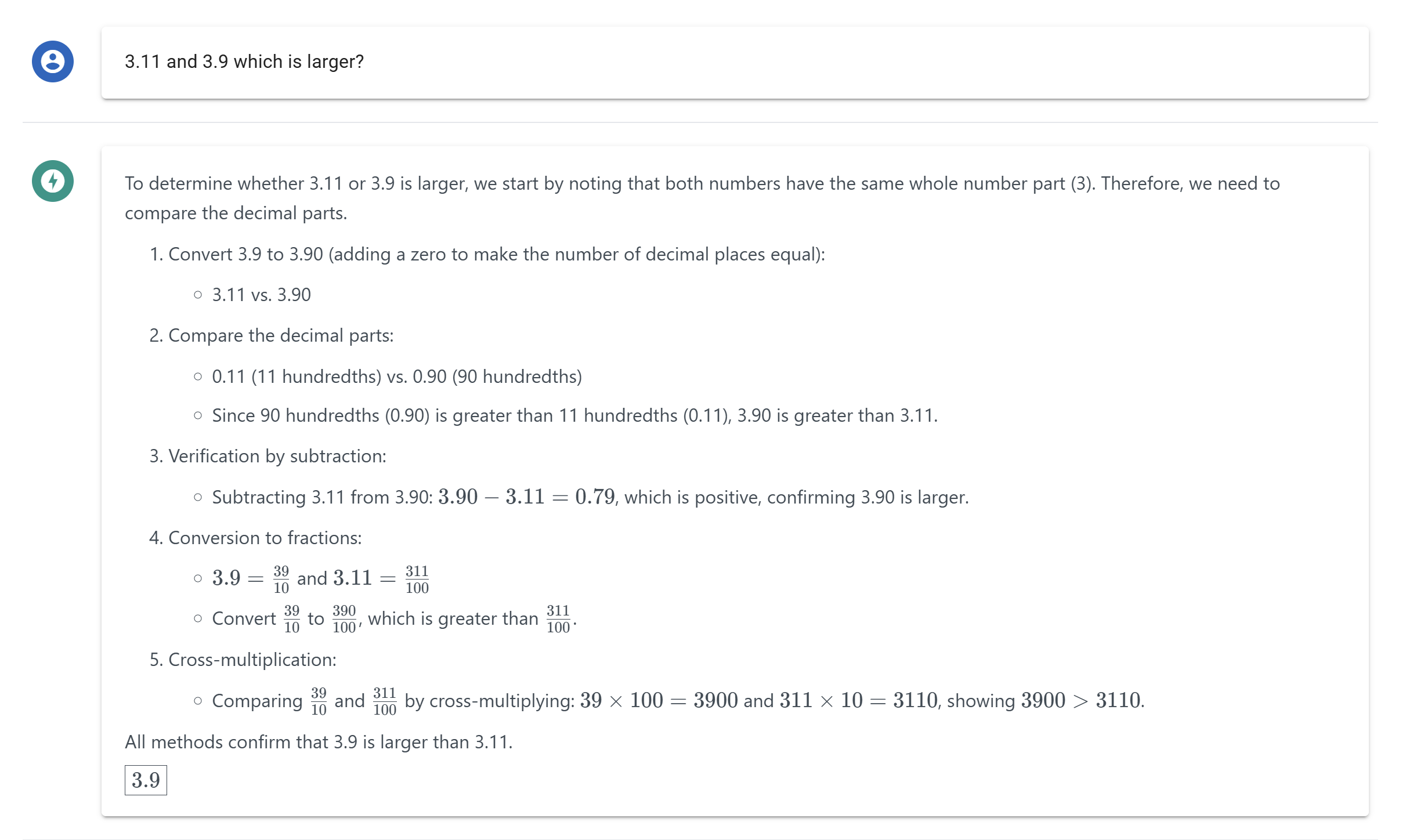
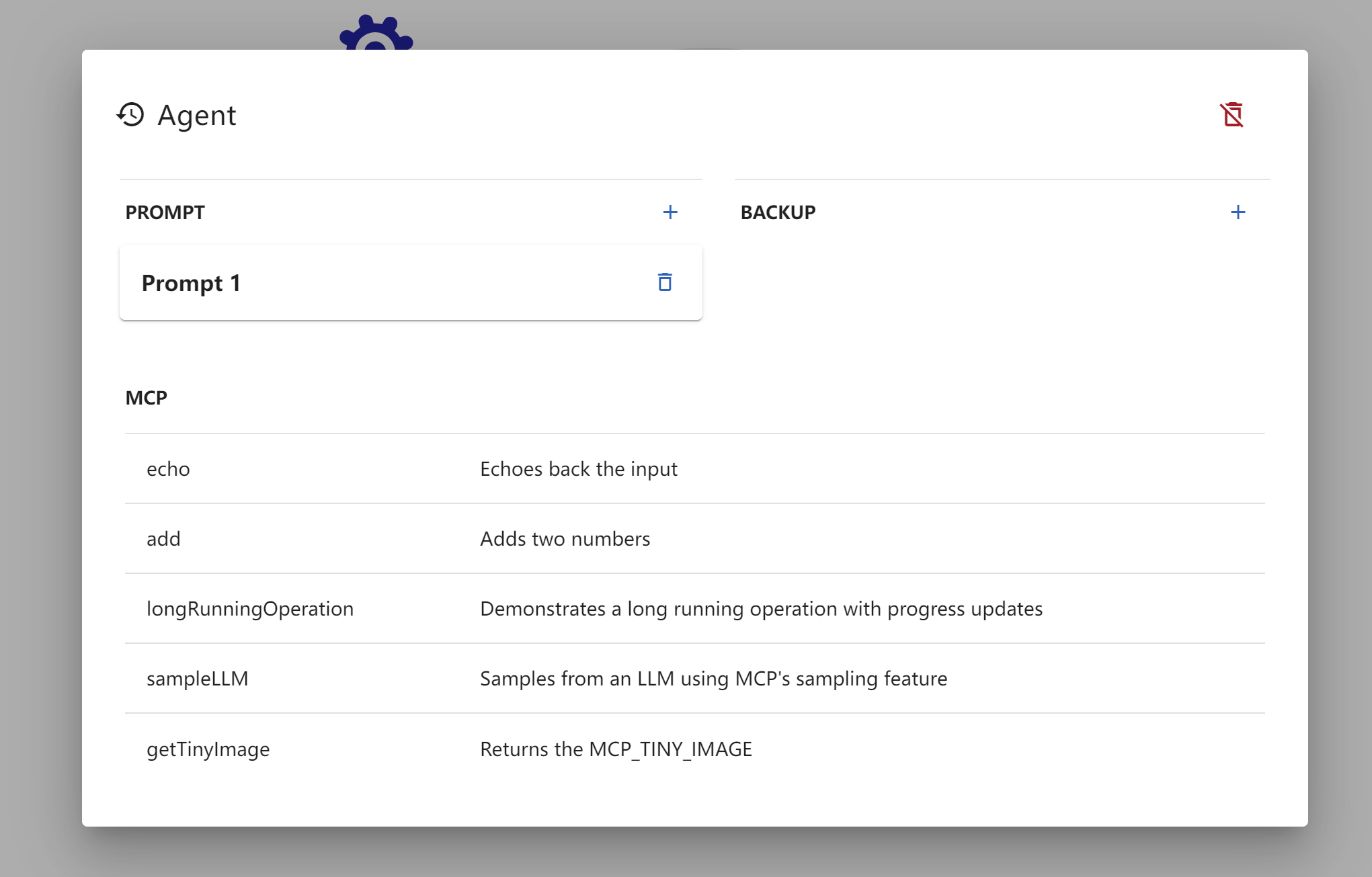
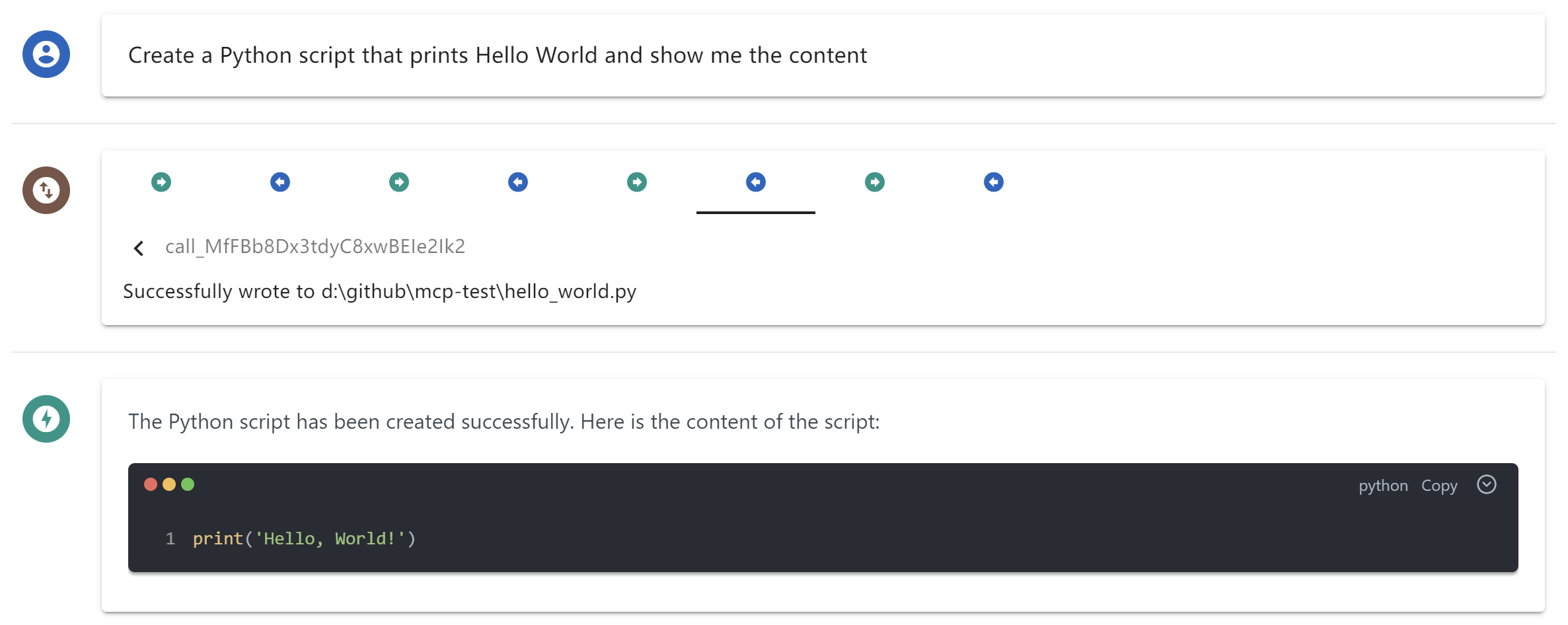
Input is a config.json in src/main defining which MCP servers to launch, command and args, for example node running a filesystem server, and a separate chatbot-store JSON file defining the LLM backend: API key, base URL, completions path, model name, and available model choices. Output is a desktop chat interface showing multimodal responses, LaTeX-rendered reasoning, MCP tool call visualization, the tool-call process, and prompt templates in use. By default the app installs server-everything, server-filesystem, and server-puppeteer for testing, with additional MCP servers installable via npx. npm run build-app packages the app for the current OS into a standalone installer artifact.
Integrations
Works with any LLM backend exposing an OpenAI-compatible chat completions endpoint - documented examples include OpenAI itself, Alibaba's Qwen via DashScope, and DeepInfra hosting Meta's Llama 3.1 models, each configured through the same JSON schema. Multi-client management lets one instance configure and connect to multiple MCP servers simultaneously via a standard mcpServers config. The UI layer can also be extracted for standalone web use, sharing the same interaction logic as the desktop app.
Who it's for
Developers and researchers who want a minimal, understandable reference client for testing MCP servers against various LLMs, or for learning MCP fundamentals before building a custom client. The project is Apache-2.0 licensed, permissive enough to fork and build a custom desktop application on top of it.
Source README
MCP Chat Desktop App
A Cross-Platform Interface for LLMs
This desktop application utilizes the MCP (Model Context Protocol) to seamlessly connect and interact with various Large Language Models (LLMs). Built on Electron, the app ensures full cross-platform compatibility, enabling smooth operation across different operating systems.
The primary objective of this project is to deliver a clean, minimalistic codebase that simplifies understanding the core principles of MCP. Additionally, it provides a quick and efficient way to test multiple servers and LLMs, making it an ideal tool for developers and researchers alike.
News
This project originated as a modified version of Chat-UI, initially adopting a minimalist code approach to implement core MCP functionality for educational purposes.
Through iterative updates to MCP, I received community feedback advocating for a completely new architecture - one that eliminates third-party CDN dependencies and establishes clearer modular structure to better support derivative development and debugging workflows.
This led to the creation of Tool Unitary User Interface, a restructured desktop application optimized for AI-powered development. Building upon the original foundation, TUUI serves as a practical AI-assisted development paradigm, if you're interested, you can also leverage AI to develop new features for TUUI. The platform employs a strict linting and formatting system to ensure AI-generated code adheres to coding standards.
📢 Update: June 2025
The current project refactoring has been largely completed, and a pre-release version is now available. Please refer to the following documentation for details:
Features
Cross-Platform Compatibility: Supports Linux, macOS, and Windows.
Flexible Apache-2.0 License: Allows easy modification and building of your own desktop applications.
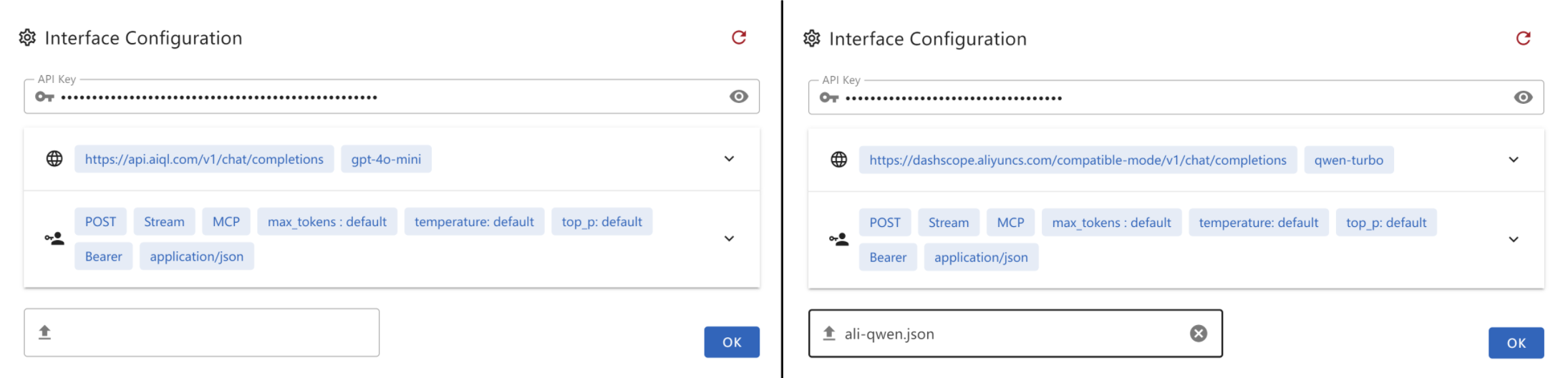
Dynamic LLM Configuration: Compatible with all OpenAI SDK-supported LLMs, enabling quick testing of multiple backends through manual or preset configurations.
Multi-Client Management: Configure and manage multiple clients to connect to multiple servers using MCP config.
UI Adaptability: The UI can be directly extracted for web use, ensuring consistent ecosystem and interaction logic across web and desktop versions.
Architecture
Adopted a straightforward architecture consistent with the MCP documentation to facilitate a clear understanding of MCP principles by:
How to use
After cloning or downloading this repository:
Please modify the
config.jsonfile located in src/main.
Ensure that thecommandandpathspecified in theargsare valid.Please ensure that Node.js is installed on your system.
You can verify this by runningnode -vandnpm -vin your terminal to check their respective versions.npm installnpm start
Configuration
Create a .json file and paste the following content into it. This file can then be provided as the interface configuration for the Chat UI.
gtp-api.json{ "chatbotStore": { "apiKey": "", "url": "https://api.aiql.com", "path": "/v1/chat/completions", "model": "gpt-4o-mini", "max_tokens_value": "", "mcp": true }, "defaultChoiceStore": { "model": [ "gpt-4o-mini", "gpt-4o", "gpt-4", "gpt-4-turbo" ] } }
You can replace the 'url' if you have direct access to the OpenAI API.
Alternatively, you can also use another API endpoint that supports function calls:
qwen-api.json{ "chatbotStore": { "apiKey": "", "url": "https://dashscope.aliyuncs.com/compatible-mode", "path": "/v1/chat/completions", "model": "qwen-turbo", "max_tokens_value": "", "mcp": true }, "defaultChoiceStore": { "model": [ "qwen-turbo", "qwen-plus", "qwen-max" ] } }deepinfra.json{ "chatbotStore": { "apiKey": "", "url": "https://api.deepinfra.com", "path": "/v1/openai/chat/completions", "model": "meta-llama/Meta-Llama-3.1-70B-Instruct", "max_tokens_value": "32000", "mcp": true }, "defaultChoiceStore": { "model": [ "meta-llama/Meta-Llama-3.1-70B-Instruct", "meta-llama/Meta-Llama-3.1-405B-Instruct", "meta-llama/Meta-Llama-3.1-8B-Instruct" ] } }
Build Application
You can build your own desktop application by:
npm run build-app
This CLI helps you build and package your application for your current OS, with artifacts stored in the /artifacts directory.
For Debian/Ubuntu users experiencing RPM build issues, try one of the following solutions:
Edit
package.jsonto skip the RPM build step. OrInstall
rpmusingsudo apt-get install rpm(You may need to runsudo apt updateto ensure your package list is up-to-date)
Troubleshooting
Error: spawn npx ENOENT - ISSUE 40
Modify the config.json in src/main
On windows, npx may not work, please refer my workaround: ISSUE 101
- Or you can use
nodein config.json:{ "mcpServers": { "filesystem": { "command": "node", "args": [ "node_modules/@modelcontextprotocol/server-filesystem/dist/index.js", "D:/Github/mcp-test" ] } } }
Please ensure that the provided path is valid, especially if you are using a relative path. It is highly recommended to provide an absolute path for better clarity and accuracy.
By default, I will install server-everything, server-filesystem, and server-puppeteer for test purposes. However, you can install additional server libraries or use npx to utilize other server libraries as needed.
Installation timeout
Generally, after executing npm install for the entire project, the total size of files in the node_modules directory typically exceeds 500MB.
If the installation process stalls at less than 300MB and the progress bar remains static, it is likely due to a timeout during the installation of the latter part, specifically Electron.
This issue often arises because the download speed from Electron's default server is excessively slow or even inaccessible in certain regions. To resolve this, you can modify the environment or global variable ELECTRON_MIRROR to switch to an Electron mirror site that is accessible from your location.
Electron builder timeout
When using electron-builder to package files, it automatically downloads several large release packages from GitHub. If the network connection is unstable, this process may be interrupted or timeout.
On Windows, you may need to clear the cache located under the electron and electron-builder directories within C:\Users\YOURUSERNAME\AppData\Local before attempting to retry.
Due to potential terminal permission issues, it is recommended to use the default shell terminal instead of VSCode's built-in terminal.
Demo
Multimodal Support
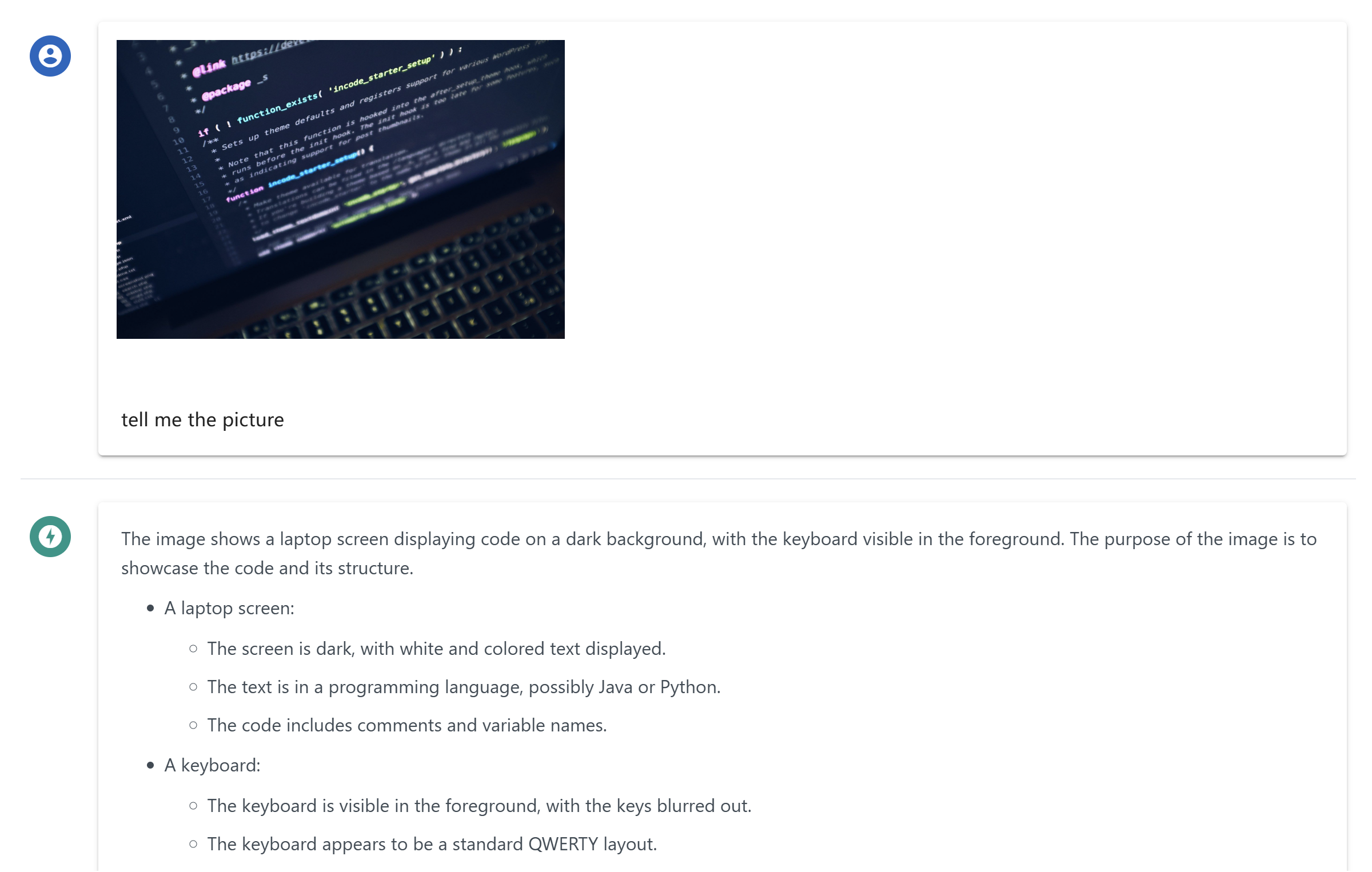
Reasoning and Latex Support
MCP Tools Visualization
MCP Toolcall Process Overview
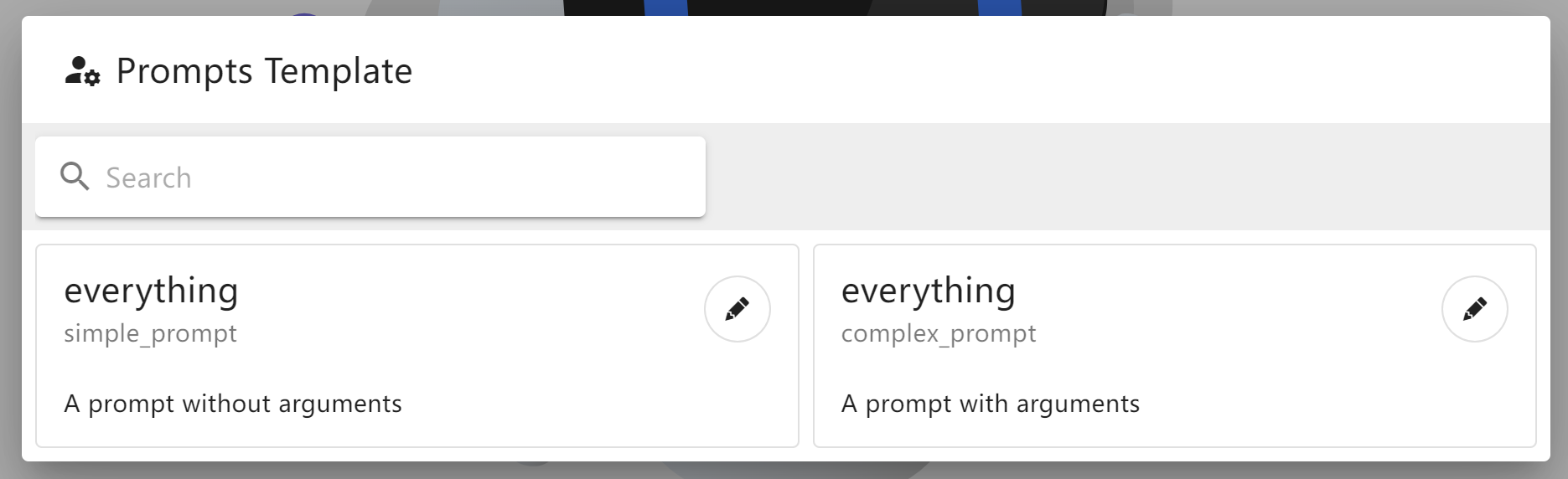
MCP Prompts Template
Dynamic LLM Config
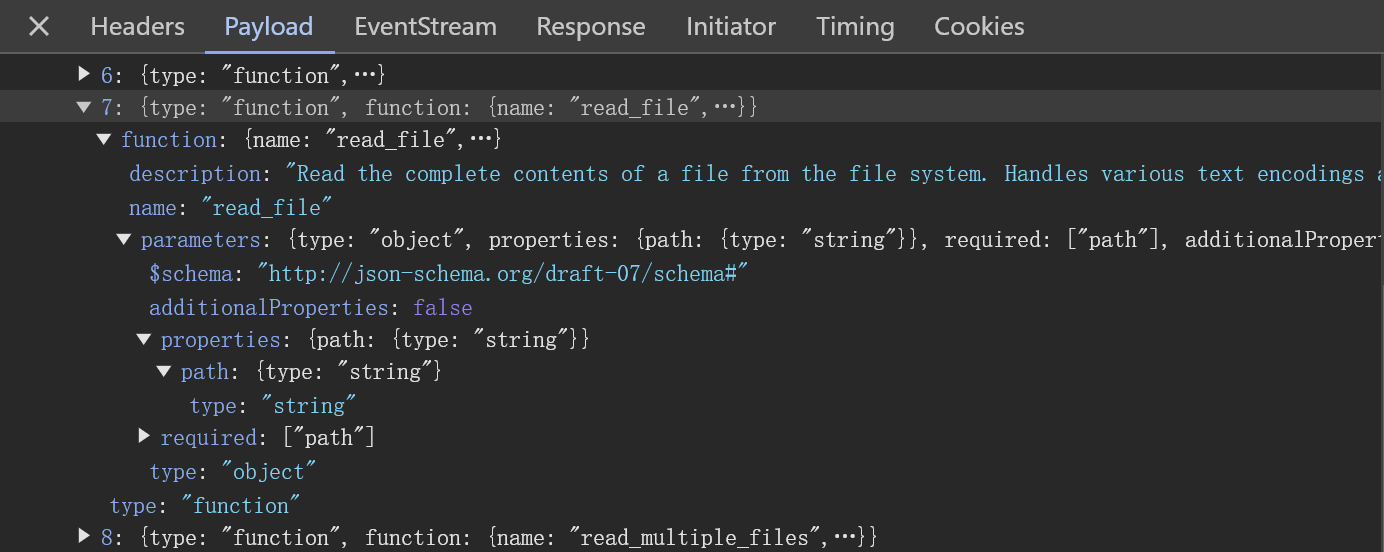
DevTool Troubleshooting
FAQ
Common questions
Discussion
Questions & comments · 0
Sign In Sign in to leave a comment.