
Connect CCTV VMS to MCP
Connect an AI assistant to your CCTV VMS: pull live or recorded footage, show playback dialogs, and control PTZ cameras by channel.
1.0.0Add to Favorites
Why it matters
Integrate your CCTV Video Management System (VMS) with the MCP protocol. Retrieve live and recorded video streams, manage camera feeds, and control PTZ functionality.
Outcomes
What it gets done
Connect to VMS for live and recorded video retrieval.
Manage VMS software, including live view and playback.
Control PTZ cameras for precise positioning.
Retrieve video channel status and recording information.
Source
Get it from source
Spark does not host a copy of it.
Open sourceReports
Agent outcome reports
No reports yet
Capabilities
Tools your agent gets
Retrieve video channel information including connection and recording status
Retrieve recording dates and times for specific video channels
Retrieve live or recorded images from video channels
Display live video stream for a specific channel
Display playback dialog for recorded video at specified timestamp
Control PTZ camera movement to specified positions
Overview
CCTV VMS MCP Server
An MCP server connecting AI assistants to a surveillance-logic.com CCTV VMS for channel status, live/recorded video retrieval, playback dialogs, and PTZ camera control. Reach for this when a security operator wants an AI assistant to check cameras, pull footage, or control PTZ cameras on an existing VMS deployment.
What it does
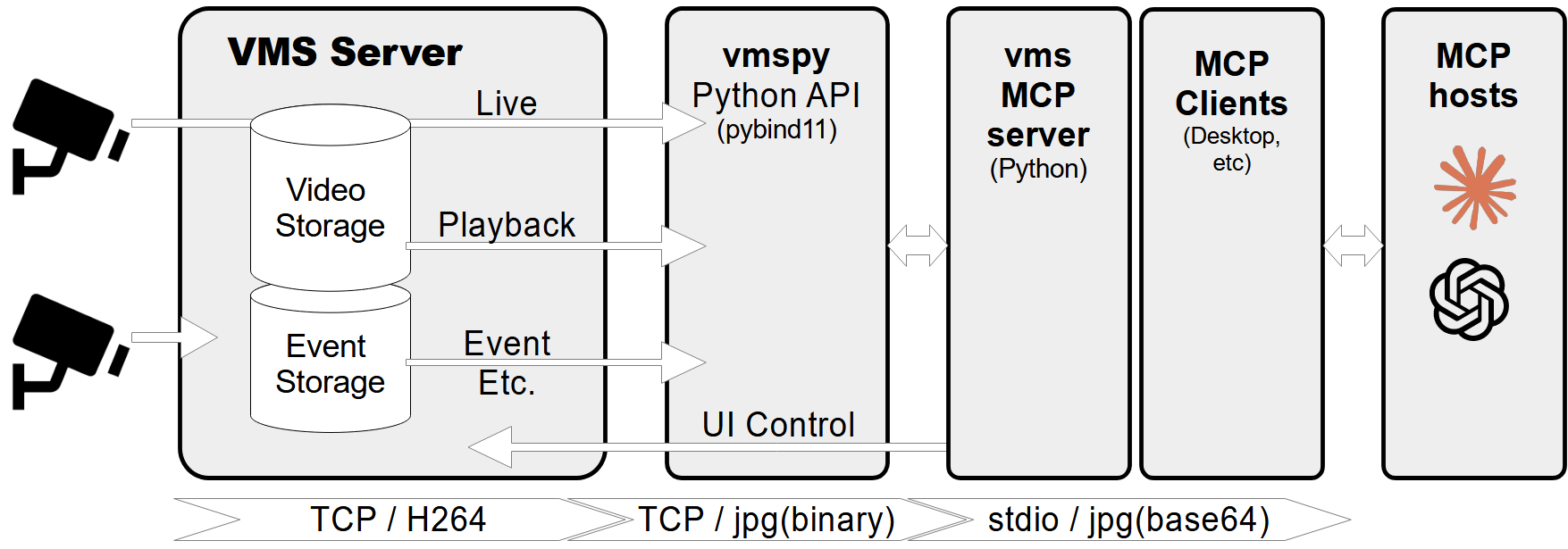
This MCP server connects to a CCTV recording program (VMS) to retrieve recorded and live video streams and control the VMS software. It retrieves video channel information including connection and recording status, fetches recording dates and times for specific channels, fetches live or recorded images from video channels, shows live video streams or playback dialogs for specific channels and timestamps, and controls PTZ (Pan-Tilt-Zoom) cameras by moving them to preset positions.
It connects to the VMS server via the vmspy library over a configurable connection (default 127.0.0.1:3300 with admin credentials), and uses Pillow for image processing.
uv run mcp_vms.py
When to use - and when NOT to
Use this when you want an AI assistant to check camera channel status, pull a live snapshot or recorded footage from a specific time, open a playback dialog for review, or move a PTZ camera to a preset position - all against a VMS server from surveillance-logic.com.
Do NOT use this without the VMS server software already installed and running (from surveillance-logic.com) and the vmspy Python library extracted into the project directory - both are required prerequisites, along with Python 3.12+ and Pillow.
Capabilities
- Retrieve channel info (connection and recording status)
- Fetch recording dates/times for a channel
- Fetch live or recorded images from a channel
- Show live video or playback dialogs for a channel and timestamp
- Control PTZ cameras (move to preset positions)
- Comprehensive error handling and logging
How to install
Install the UV package manager, install the VMS server from surveillance-logic.com, then download and extract the vmspy library (vmspy1.4-python3.12-x64.zip) into the mcp-vms directory alongside mcp_vms.py and mcp_vms_config.py. Configure the VMS connection (URL, port, access credentials) in mcp_vms_config.py, then add to Claude Desktop's config:
{
  "mcpServers": {
    "vms": {
      "command": "uv",
      "args": ["--directory", "X:\\path\\to\\mcp-vms", "run", "mcp_vms.py"]
    }
  }
}
Who it's for
Security operators and integrators using a surveillance-logic.com VMS who want an AI assistant to check camera status, pull footage, or control PTZ cameras conversationally.
Source README
MCP Server - VMS Integration
A Model Context Protocol (MCP) server designed to connect to a CCTV recording program (VMS) to retrieve recorded and live video streams. It also provides tools to control the VMS software, such as showing live or playback dialogs for specific channels at specified times.
Features
- Retrieve video channel information, including connection and recording status.
- Fetch recording dates and times for specific channels.
- Fetch live or recorded images from video channels.
- Show live video streams or playback dialogs for specific channels and timestamps.
- Control PTZ (Pan-Tilt-Zoom) cameras by moving them to preset positions.
- Comprehensive error handling and logging.
Prerequisites
- Python 3.12+
vmspylibrary (for VMS integration)Pillowlibrary (for image processing)
MCP-server Configuration
If you want to use mcp-vms with Claude desktop, you need to set up the claude_desktop_config.json file as follows:
{
  "mcpServers": {
	"vms": {
	  "command": "uv",
	  "args": [
		"--directory",
		"X:\\path\\to\\mcp-vms",
		"run",
		"mcp_vms.py"
	  ]
	}
  }
}
VMS Connection Configuration
The server uses the following default configuration for connecting to the VMS:
- mcp_vms_config.py
vms_config = {
    'img_width': 320,
    'img_height': 240,
    'pixel_format': 'RGB',
    'url': '127.0.0.1',
    'port': 3300,
    'access_id': 'admin',
    'access_pw': 'admin',
}
Installation
1. Install UV Package Manager
Run the following command in PowerShell to install UV:
powershell -ExecutionPolicy ByPass -c "irm https://astral.sh/uv/install.ps1 | iex"
For alternative installation methods, see the official UV documentation.
2.Install VMS Server
Download and install the VMS server from:
http://surveillance-logic.com/en/download.html
(Required before using this MCP server)
3.Install Python Dependencies
Download the vmspy library:
vmspy1.4-python3.12-x64.zip
Extract the contents into your mcp_vms directory
The mcp-vms directory should look like this:
mcp-vms/
├── .gitignore
├── .python-version
├── LICENSE
├── README.md
├── pyproject.toml
├── uv.lock
├── mcp_vms.py            # Main server implementation
├── mcp_vms_config.py     # VMS connection configuration
├── vmspy.pyd             # VMS Python library
├── avcodec-61.dll        # FFmpeg libraries
├── avutil-59.dll
├── swresample-5.dll
├── swscale-8.dll

FAQ
Common questions
Discussion
Questions & comments · 0
Sign In Sign in to leave a comment.