
Claude Read Aloud
A bundle that adds text-to-speech buttons and hotkeys to Claude Code and VS Code.
1.0.0Add to Favorites
Source
Get it from source
Spark does not host a copy of it.
Open sourceReports
Agent outcome reports
No reports yet
Overview
This bundle adds text-to-speech to Claude Code: an in-chat speaker button, right-click 'Read aloud' on highlighted text, hotkeys, and a settings panel in Claude Code's sidebar. It ships a Claude Code plugin as the engine and a companion VS Code extension for the buttons. Voices range from free system and Kokoro neural voices to paid Speechify, ElevenLabs, or OpenAI voices with your own key. Use it if you read Claude Code replies all day and want to listen instead, or if reading itself is the hard part. Skip the VS Code extension if you only use the terminal.
The workflow you build
This bundle adds text-to-speech to Claude Code: a speaker button inside the chat box next to the mic, a right-click "Read aloud" on any highlighted text, hotkeys, and a settings panel inside Claude Code's own sidebar, so replies can be heard instead of read. It ships as two pieces working together, a Claude Code plugin (the engine: voices, chunked playback, /read-aloud:* commands, an auto-read hook) and a companion VS Code extension (the buttons: status bar, toolbar icon, hotkeys, right-click menu, in-chat speaker, and the sidebar settings panel). Long replies start speaking in roughly 1-3 seconds regardless of length, because text is split at sentence boundaries into ramped chunks, a small first chunk for fast time-to-first-sound, with the next chunk synthesizing while the previous one plays so there are no audible gaps. Voice choice ranges from free system voices (macOS say, Linux speech-dispatcher, Windows SAPI) or the free local neural voice Kokoro (54 voices, one-time ~340MB download, no account) up to paid cloud voices from Speechify, ElevenLabs, or OpenAI using your own API key, or any local engine wired in through a command template.
When to use this bundle - and when NOT to
Use it if you work with Claude Code all day and start skimming rather than absorbing long replies, if low vision, dyslexia, or screen fatigue make reading itself the hard part, or if you simply want to keep your eyes on the code while listening to the explanation. Auto-read is off by default on purpose - a working session can produce 4+ hours of speech a day, and most people settle into on-demand reading within a day of trying auto-read. It is not a fit if you're not using Claude Code or VS Code at all, and terminal-only users only need the plugin half, not the VS Code extension.
How to get started
Install the plugin first, since it's the engine:
claude plugin marketplace add michaelpgifford/claude-read-aloud
claude plugin install read-aloud@claude-read-aloud
This needs Python 3.9+ on PATH and installs no packages, the engine is one standard-library script. On Linux, run /read-aloud:voice-setup first, since the stock espeak voice is poor and the free Kokoro neural voice is a large improvement for the same zero cost. VS Code users then install the extension from the Marketplace (search "Claude Read Aloud") for the status-bar button, toolbar icon, hotkeys (Ctrl+Alt+S/X), and the in-chat speaker button; the in-chat button specifically works by patching two files of the installed Claude Code extension locally, never leaving the machine, which is disclosed as a real, opt-in widening of the webview sandbox and is re-applied automatically after each Claude Code update wipes it. Both pieces are MIT licensed.
Who it's for
Claude Code users who read replies all day and want to shift some of that load to listening, especially anyone for whom reading is the harder mode, whether from long working hours, low vision, dyslexia, or general screen fatigue, and who want the reading trigger to feel native, an in-chat button and right-click menu, rather than a separate tool to switch to.
Source README
claude-read-aloud
Hear Claude's replies instead of reading them. A speaker button inside Claude Code's chat box, right-click Read aloud on any highlighted text, a hotkey, and a settings panel in Claude's own sidebar - voices from free system TTS up to Speechify / ElevenLabs / OpenAI with your own key.

If you work with Claude Code all day, you read all day - and at some point you stop absorbing and start skimming. Listening shifts the load from your eyes to your ears: you take in the whole answer, keep your eyes on the code it describes, and reply better. And when reading itself is the hard part - low vision, dyslexia, screen fatigue - it makes Claude Code usable at all.
Free out of the box: system voices with zero setup, or one command installs Kokoro, a genuinely good local neural voice - no account, no key, 54 voices.
Two pieces
| Piece | What it gives you |
|---|---|
| Claude Code plugin (this repo) | the engine: voices, chunked playback, /read-aloud:* commands, auto-read hook |
VS Code extension (vscode-extension/) |
the buttons: status bar, toolbar, hotkeys, right-click Read aloud, the in-chat speaker, and a Read Aloud settings panel inside Claude's sidebar |
Install the plugin first (it's the engine), then the extension if you use VS Code. Terminal-only users need just the plugin.
Install
claude plugin marketplace add michaelpgifford/claude-read-aloud
claude plugin install read-aloud@claude-read-aloud
(Same two steps work inside Claude Code as /plugin marketplace add … and
/plugin install …, or from a local clone by passing its path to
marketplace add.)
Requires Python 3.9+ on your PATH (python3, or python on Windows).
No packages to install - the whole engine is one standard-library script.
Use
/read-aloud:speak |
read the last reply aloud |
/read-aloud:speak-stop |
stop |
/read-aloud:speak-auto on |
read every reply automatically (off by default) |
/read-aloud:speak-status |
show provider, voice, and where the config lives |
/read-aloud:voice-setup |
one-time install of the free Kokoro neural voice |
On Linux, run /read-aloud:voice-setup first. macOS and Windows system
voices are decent out of the box; Linux's stock voice is espeak, which is not.
One command and ~340MB later you have a genuinely pleasant local voice, free
forever - the plugin will remind you once if you skip this.
(Type /speak and let completion fill the namespace - commands are listed
under their plugin name.)
Long replies start speaking in ~1-3 seconds regardless of length: text is split at sentence boundaries into ramped chunks (small first - its size is the time-to-first-sound), and each next chunk synthesises while the previous one plays, so there are no gaps.
Voices
| Provider | Cost | Setup |
|---|---|---|
system (default) |
free | none - uses macOS say, Linux speech-dispatcher, or Windows SAPI |
kokoro |
free | /read-aloud:voice-setup - local neural voice, 54 voices, no account (one-time ~340MB download) |
speechify |
~$10 / 1M chars | export SPEECHIFY_API_KEY=… |
elevenlabs |
from ~$5/mo | export ELEVENLABS_API_KEY=… |
openai |
~$15 / 1M chars | export OPENAI_API_KEY=… |
command |
free | any local engine (Piper, Kokoro, …) via a command template |
Config lives at ~/.config/claude-read-aloud/config.json
(%APPDATA%\claude-read-aloud\config.json on Windows):
{
  "provider": "speechify",
  "voice": "oliver",
  "speed": 1.0,
  "auto_read": false
}
voice is the provider's own voice name/id (macOS: say -v '?' lists yours;
cloud providers list voices in their consoles). API keys go in environment
variables, never in the file.
A local neural engine plugs in through command - {text} is replaced with
the text to speak; add {out} if your engine writes a WAV for the plugin to
play (that's what enables gapless chunking):
{
  "provider": "command",
  "command": "piper -m /path/to/voice.onnx -f {out}"
}
The fine print that saves you a support ticket
- Auto-read is off by default, on purpose. A working session produces hours
of speech per day (we measured 4+). Try
/speak-auto on- most people come back to on-demand within a day, and that's the intended workflow. - Replies cap at 12,000 characters (~14 minutes) and say so when cut. Code blocks are spoken as "code omitted" - nobody wants JSON read aloud.
- Stop always works mid-sentence:
/speak-stop, or the button/hotkey below. - Speechify's WAV arrives with broken (streaming) header sizes; the plugin repairs them - if you ever hear a burst of static with another tool, that's what it was.
Buttons and hotkeys in VS Code
The companion extension adds, safely and update-proof:
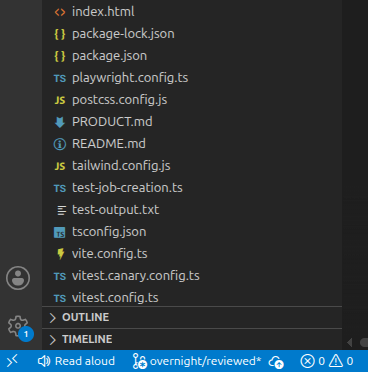
- a status-bar Read aloud button (bottom-left, under the chat input),
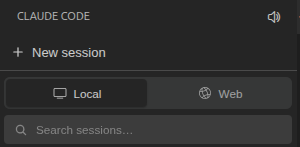
- a toolbar icon on the Claude Code panel,
- Ctrl+Alt+S / Ctrl+Alt+X (⌘⌥S / ⌘⌥X on macOS),
- the settings panel, voice picker, right-click menu, and in-chat button below.
Install it from the VS Code Marketplace - search "Claude Read Aloud", or:
code --install-extension MichaelGifford.claude-read-aloud-button
It auto-detects the installed plugin. (From source instead: clone this repo,
npx @vscode/vsce package in vscode-extension/, and install the .vsix
via Extensions → … → Install from VSIX.)
The status-bar button sits bottom-left, directly under the chat input, and the toolbar icon rides on the Claude Code panel itself:
The good stuff: in-chat button + right-click "Read aloud"
The two triggers that actually feel native - and, in daily use, the ones you end up reaching for:
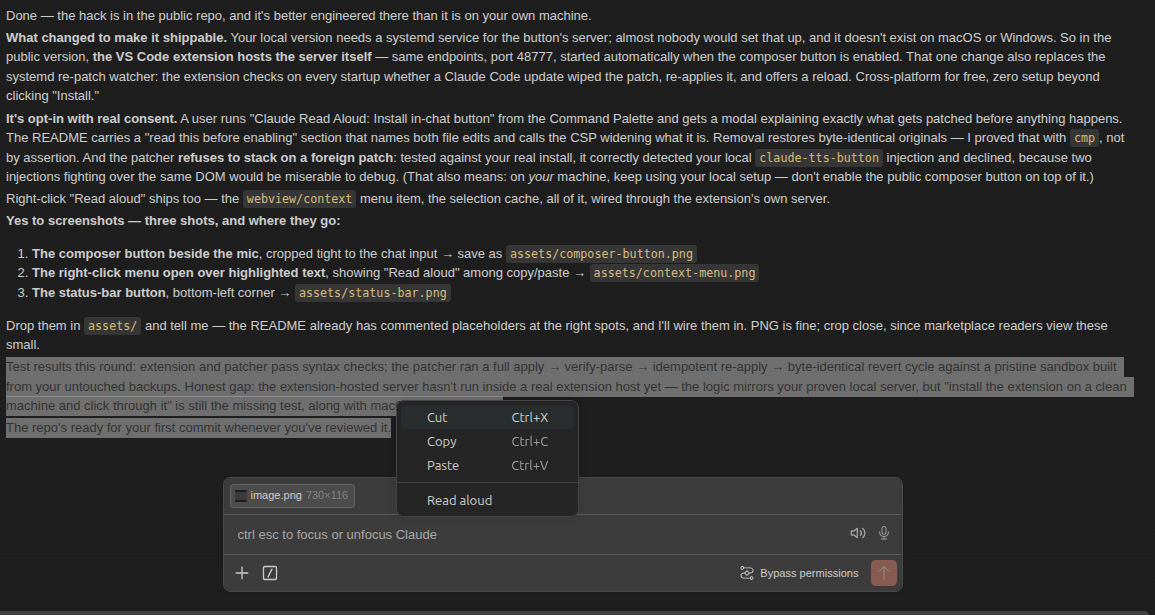
- A speaker button inside the chat box, right next to the mic. Click it and it reads the reply you're looking at - the visible conversation in that pane, never another tab's and never a transcript from somewhere else. Highlight text first and it reads that, cutting off whatever was playing: a new reading always replaces the old, because two at once are unlistenable.
- Highlight any text in the chat → right-click → "Read aloud" in the same menu as copy/paste.
The speaker sits right where your eyes already are, next to the mic:
Highlight, right-click, and it's in the same menu as copy and paste:
The extension offers this once on startup (a small toast); or run "Claude Read Aloud: Install in-chat button" from the Command Palette, confirm, reload. Undo any time with "Remove in-chat button".
Settings panel and voice picker
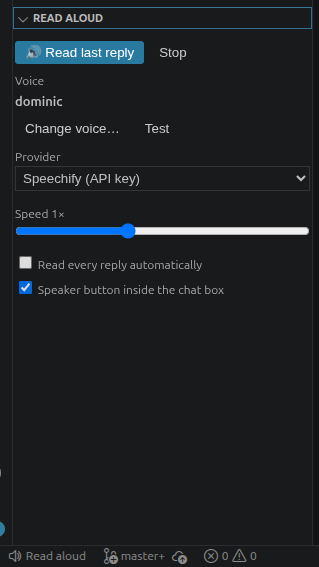
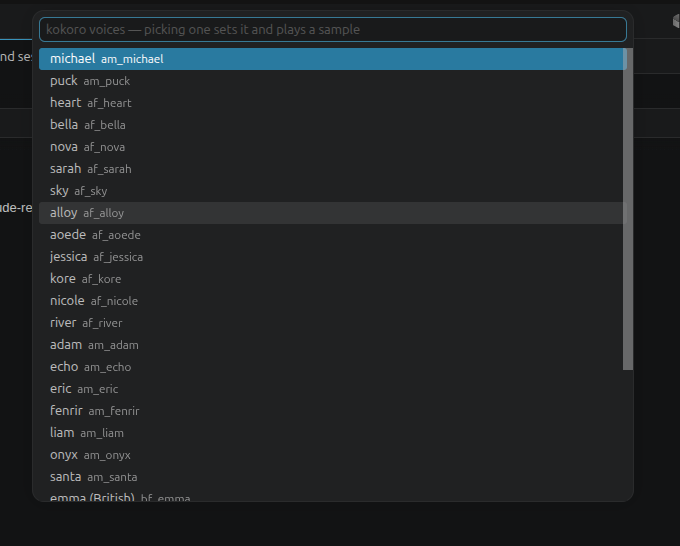
A Read Aloud section lives inside Claude Code's own sidebar: current voice with test, provider switcher, speed, auto-read, and the in-chat button toggle. Change voice… opens a searchable picker of the current provider's voices - selecting one saves it and plays a sample in that voice immediately.
Read this part before enabling it. VS Code offers no way to put a button inside another extension's webview, so this works by patching two files of the installed Claude Code extension on your machine:
webview/index.jsgets a script appended (never spliced - an upstream change can stop it matching, but can't corrupt the bundle) that inserts the button and captures right-click selections.extension.js's Content-Security-Policy gains one directive,connect-src http://127.0.0.1:48777, so the button can reach this extension's local server. That is a real, if small, widening of the webview sandbox - one localhost port - and it's the entire reason this is opt-in rather than default.
Originals are backed up beside each file (*.cra-orig) and restored exactly on
removal. Every Claude Code update wipes the patch; the extension notices on
startup and re-applies it, asking you to reload. Worst case, the button
disappears until the next reload - the hotkeys and status-bar button never
depend on it. If you previously hand-patched these files with something else,
revert that first; the patcher refuses to stack two injections.
This is a userscript-style local mod, in the same spirit as browser extensions that add buttons to websites. It never leaves your machine. The right fix is Anthropic shipping a TTS affordance natively - if you want that, add your voice to a feature request on anthropics/claude-code.
How it decides what to read
/speakand auto-read use the session's own transcript (hooks receive the exact path - never a guess).- The VS Code button scopes to the window's workspace, so a busier session in another project can't hijack what gets read.
Skills in this collection
- speak-auto: Toggle reading every reply aloud automatically - SKILL.md
- speak-status: Show read-aloud configuration (provider, voice, auto-read) - SKILL.md
- speak-stop: Stop reading aloud - SKILL.md
- speak: Read Claude's last reply aloud - SKILL.md
- voice-setup: Install the free Kokoro neural voice (one-time ~340MB download; big upgrade on Linux) - SKILL.md
- voice: Pick the reading voice - list, audition, set - SKILL.md
FAQ
Common questions
Discussion
Questions & comments · 0
Sign In Sign in to leave a comment.