
Connect AI assistants to Microsoft OneNote notebooks
MCP server that reads and writes Microsoft OneNote notebooks, sections, and pages via Microsoft Graph API.
1.0.0Add to Favorites
Why it matters
Enable AI models to read from and write to Microsoft OneNote notebooks, sections, and pages through the Microsoft Graph API, allowing seamless integration of note-taking workflows with AI assistants.
Outcomes
What it gets done
Read notebooks, sections, and pages from OneNote accounts
Create new notebooks, sections, and pages programmatically
Convert HTML content to text for RAG processing
Authenticate using Microsoft device code flow with token caching
Source
Get it from source
Spark does not host a copy of it.
Open sourceReports
Agent outcome reports
No reports yet
Capabilities
Tools your agent gets
Read notebooks from Microsoft OneNote using the Microsoft Graph API.
Read sections from Microsoft OneNote using the Microsoft Graph API.
Read pages from Microsoft OneNote using the Microsoft Graph API.
Create a new notebook in Microsoft OneNote.
Create a new section in Microsoft OneNote.
Create a new page in Microsoft OneNote.
Overview
OneNote MCP Server connects an AI assistant to Microsoft OneNote via the Microsoft Graph API, letting it read notebooks, sections, and pages and create new ones. It converts page HTML to plain text for RAG processing and authenticates via MSAL device code flow. Use it when an AI assistant needs to read or write OneNote content directly. It requires an Azure app registration with Notes.Read/Notes.ReadWrite permissions and an interactive first-run device-code login.
What it does
OneNote MCP Server connects an AI assistant to Microsoft OneNote through the Microsoft Graph API, so the assistant can read existing notebooks, sections, and pages and create new ones. It converts OneNote's HTML page content into plain text for better retrieval-augmented-generation (RAG) processing, so long or richly formatted notes become usable context rather than raw markup. Authentication uses the Microsoft Authentication Library (MSAL) with a device code flow: on first run the server prints a device code and URL, the user visits the URL and enters the code, and the resulting tokens are cached to disk for subsequent runs.
When to use - and when NOT to
Use it when an AI assistant needs to pull notes out of OneNote for summarization or search, or to write new pages, sections, or notebooks back into a user's OneNote account - capturing meeting notes, generating a page from a conversation, or organizing content into a new section. It requires a Microsoft 365 subscription with OneNote and an application registered in Azure with the Notes.Read and Notes.ReadWrite Graph API permissions and public client flows enabled, so it is not a zero-setup integration - an Azure admin or the individual user needs to complete that registration first. The device-code authentication flow means the first run is interactive; it is not suited to fully unattended, non-interactive deployments unless the cached token is provisioned ahead of time.
Capabilities
Two MCP tools cover the full surface: onenote-read, which lists or fetches notebooks, sections, or pages by ID and can optionally include page content and metadata; and onenote-create, which creates a new page, section, or notebook, accepting HTML content for pages and an optional parent ID to place the new item under an existing notebook or section. Read operations default to including content but excluding metadata unless requested. The project also ships Docker support, running the server in a container with the client ID passed as an environment variable and the device-code and token-cache files persisted to a mounted data volume so re-authentication isn't required on every container restart.
How to install
Install dependencies after cloning the repository:
npm install
A .env.local file supplies the Azure application's CLIENT_ID. Development mode runs via npm run dev; a production build compiles TypeScript with npm run build and then starts with npm start. It requires Node.js v14 or higher and npm v6 or higher. For Claude Desktop, the server directory and a build-and-start command are added directly to claude_desktop_config.json.
Who it's for
Microsoft 365 users who want an AI assistant to read and write their OneNote notes directly - summarizing existing notebooks, searching across pages, or capturing new content - rather than switching to the OneNote app.
Source README
OneNote MCP Server
A Model Context Protocol (MCP) server that provides AI assistants with access to Microsoft OneNote. This server enables AI models to read from and write to OneNote notebooks, sections, and pages.
Project Overview
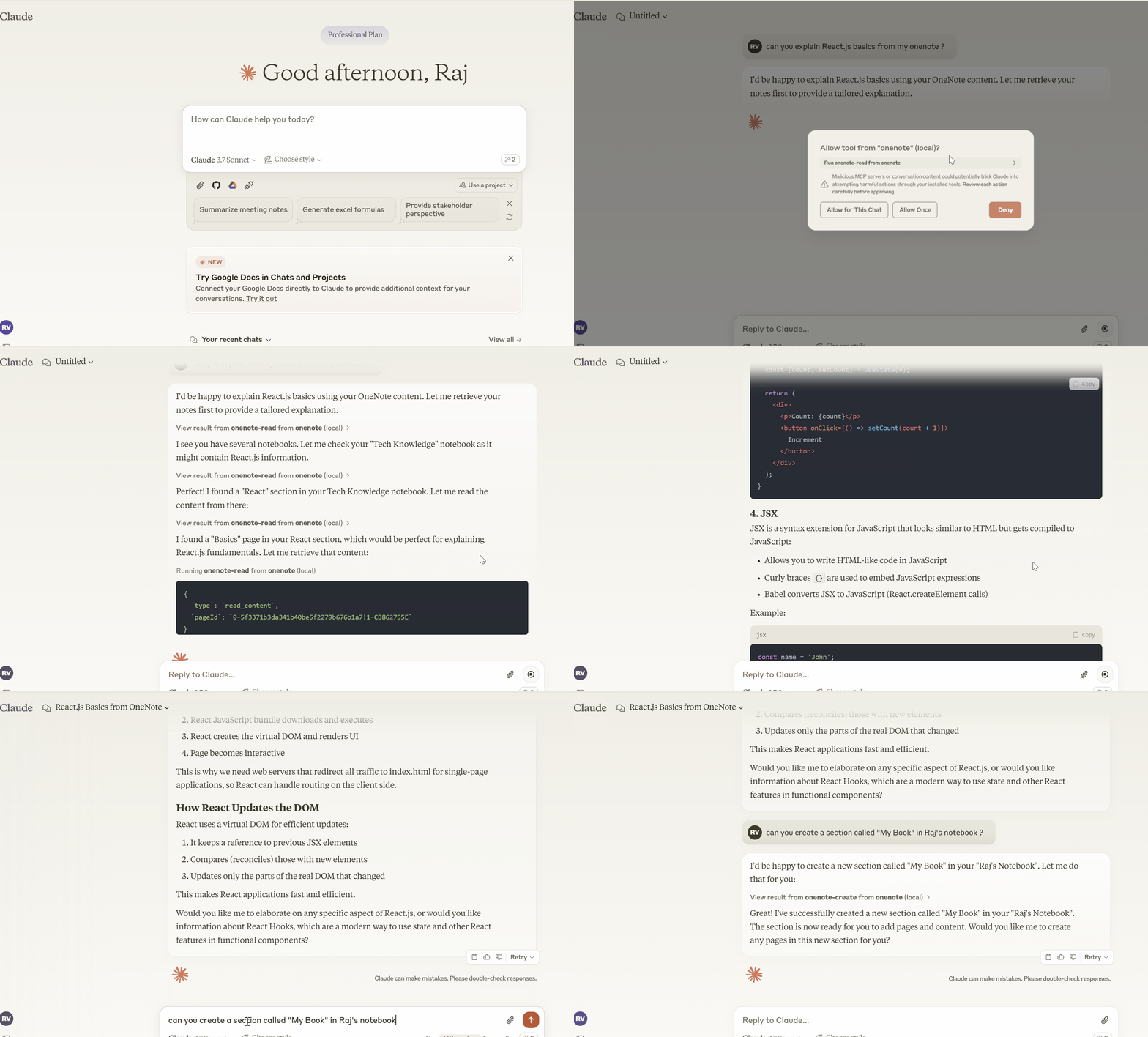
This project implements an MCP server that connects to Microsoft OneNote using the Microsoft Graph API. It provides tools for:
- Reading notebooks, sections, and pages from OneNote
- Creating new notebooks, sections, and pages in OneNote
- Converting HTML content to text for better RAG processing
Project Structure
onenote/
├── dist/                # Compiled JavaScript files (generated)
├── src/                 # TypeScript source files
│   ├── index.ts         # Main entry point and server implementation
│   └── types/           # Custom TypeScript type definitions
├── .vscode/             # VS Code configuration
│   ├── launch.json      # Debug configurations
│   └── tasks.json       # Build tasks
├── package.json         # Project dependencies and scripts
├── tsconfig.json        # TypeScript configuration
├── Dockerfile           # Docker configuration
├── .env.local.example   # Example environment variables
└── README.md            # This file
Authentication
The server uses Microsoft Authentication Library (MSAL) with device code flow for authentication:
- When first run, the server generates a device code and URL
- The code is saved to
device-code.txtin the project directory - You must visit the URL and enter the code to authenticate
- After authentication, tokens are cached in
token-cache.jsonfor future use
MCP Tools
The server provides the following MCP tools:
onenote-read
Read content from Microsoft OneNote notebooks, sections, or pages.
Parameters:
type: "read_content"pageId: (optional) ID of the specific page to readsectionId: (optional) ID of the section to list pages fromnotebookId: (optional) ID of the notebook to list sections fromincludeContent: (optional) Whether to include the content of the page (default: true)includeMetadata: (optional) Whether to include metadata about the page (default: false)
onenote-create
Create new content in Microsoft OneNote.
Parameters:
type: "create_page", "create_section", or "create_notebook"title: Title of the content to createcontent: Content in HTML format (for pages)parentId: (optional) ID of the parent section or notebook
Getting Started
Prerequisites
- Node.js (v14 or higher)
- npm (v6 or higher)
- Microsoft Azure account with a registered application
- OneNote account (Microsoft 365 subscription)
Azure Setup
- Register a new application in the Azure Portal
- Add the following API permissions:
- Microsoft Graph > Notes.Read
- Microsoft Graph > Notes.ReadWrite
- Configure authentication:
- Under "Authentication" settings, set "Supported account types" to:
- "Accounts in any organizational directory (Any Microsoft Entra ID tenant - Multitenant) and personal Microsoft accounts (e.g. Skype, Xbox)"
- Enable "Allow public client flows" for the app
- Under "Authentication" settings, set "Supported account types" to:
- Note your Application (client) ID for configuration
Installation
- Clone the repository
- Install dependencies:
npm install
- Create a
.env.localfile with your Azure client ID:
CLIENT_ID=your-client-id-from-azure
Development
To run the application in development mode:
npm run dev
Building
To compile TypeScript to JavaScript:
npm run build
Running
To run the compiled application:
npm start
Docker Support
You can build and run the application using Docker:
# Create a data directory for persistence
mkdir -p data

# Build the Docker image
docker build -t onenote-mcp-server .

# Run the container
docker run -d \
  --name onenote-mcp-server \
  -e CLIENT_ID=your-client-id \
  -v $(pwd)/data:/app/dist \
  onenote-mcp-server
Authentication with Docker
When running in Docker, the authentication flow works as follows:
- Start the container as shown above
- Check the device code file:
cat data/device-code.txt - Follow the instructions to authenticate with Microsoft
- The token will be cached in
data/token-cache.jsonfor future use
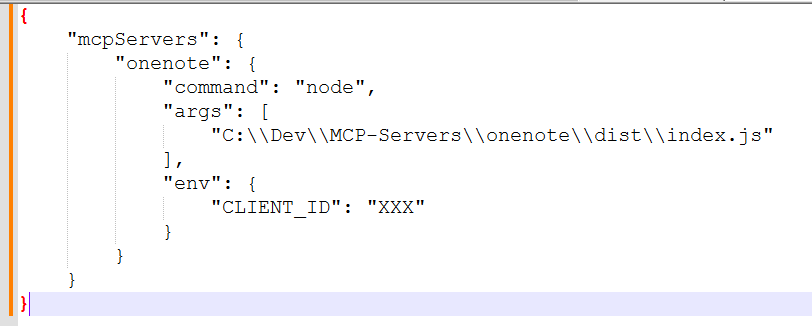
Setup with Claude Desktop
Clone this repository
Run
npm installto install dependenciesIn Claude Desktop, add a new MCP server:
- Set the server directory to your cloned repository
- Set the command to:
npm run build && npm start - Add the following environment variable:
- Name: CLIENT_ID
- Value: [Your Microsoft Azure Application Client ID]
Save the configuration and connect to the server.
Find the file location (claude_desktop_config.json):
The file is typically located at:
On Mac OS (~/Library/Application Support/Claude/claude_desktop_config.json)
On Windows (C:\Users\YourUsername\AppData\Roaming\Claude\claude_desktop_config.json)
Authentication Flow
- On first run, the server will generate a device code and URL
- The code is saved to
device-code.txtin the project directory - Visit the URL and enter the code to authenticate
- After authentication, tokens are cached in
token-cache.json - Subsequent runs will use the cached token if valid
Troubleshooting
- Authentication Issues: Delete
token-cache.jsonto force re-authentication - Module Errors: Ensure you're using Node.js 14+ with ES modules support
- TypeScript Errors: Run
npm run buildto check for compilation errors
FAQ
Common questions
Discussion
Questions & comments · 0
Sign In Sign in to leave a comment.